How to Customize and Manage Invoices in Neat
Neat makes it easy to customize and manage your invoices to fit your business needs. You can update your invoice settings, manage customer and product information, send invoices to customers, and use invoice actions to edit, duplicate, or record payments. You can also sort and filter your invoices to quickly find specific records, track invoice statuses, and monitor outstanding and past-due balances. This guide covers the key invoicing features available in Neat and how to use them to keep your invoicing organized and up to date.Manage your Invoices in Neat
- How do I customize my invoices?
- How do I add new customers?
- How do I add new products or services?
- How do I manage my invoices using actions?
- Edit a draft invoice
- Open and view an invoice
- Send your customer an invoice reminder
- Send your invoice to your customer
- Mark your invoice as sent
- Print or export your invoice
- Void an invoice
- Duplicate an invoice
- Manage invoice payments
- Save your invoice to your Neat File Cabinet
- View invoices you sent to the Neat File Cabinet
- How do I sort and filter my invoices?
- How do I send a copy of an invoice to a customer?
- How do I save a copy of an invoice to my Neat File Cabinet?
- What is the difference between amount outstanding and amount past due?
How do I customize my invoices?
To edit your invoice settings, locate the Gear icon in the upper right corner of the invoice screen, next to 'Create Invoice'.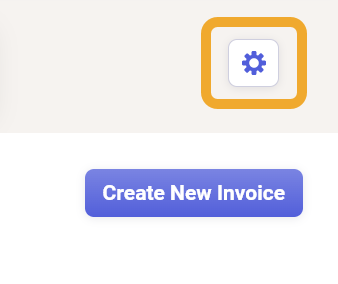
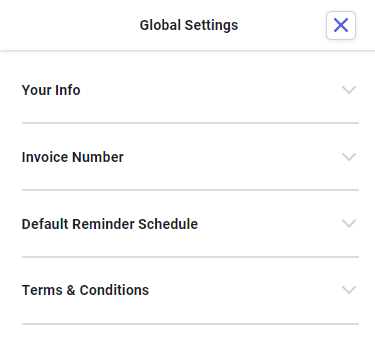
- Under Your Info, you can update your company name, address, contact information, and remove or update your company logo.
- Select Invoice Number to set a new invoice number. This will start with your next invoice. You cannot choose a number lower than your most recent invoice.
- Select Default Reminder Schedule to add, change, or remove any of your invoice reminders.
- Select Terms & Conditions to update your custom text or URL link. You must choose one or the other, not both.
How do I add new customers?
You can manually add customers to Neat following the steps below, or you can import customers to Neat from a CSV list.- Click on Customers at the top of the invoice grid.
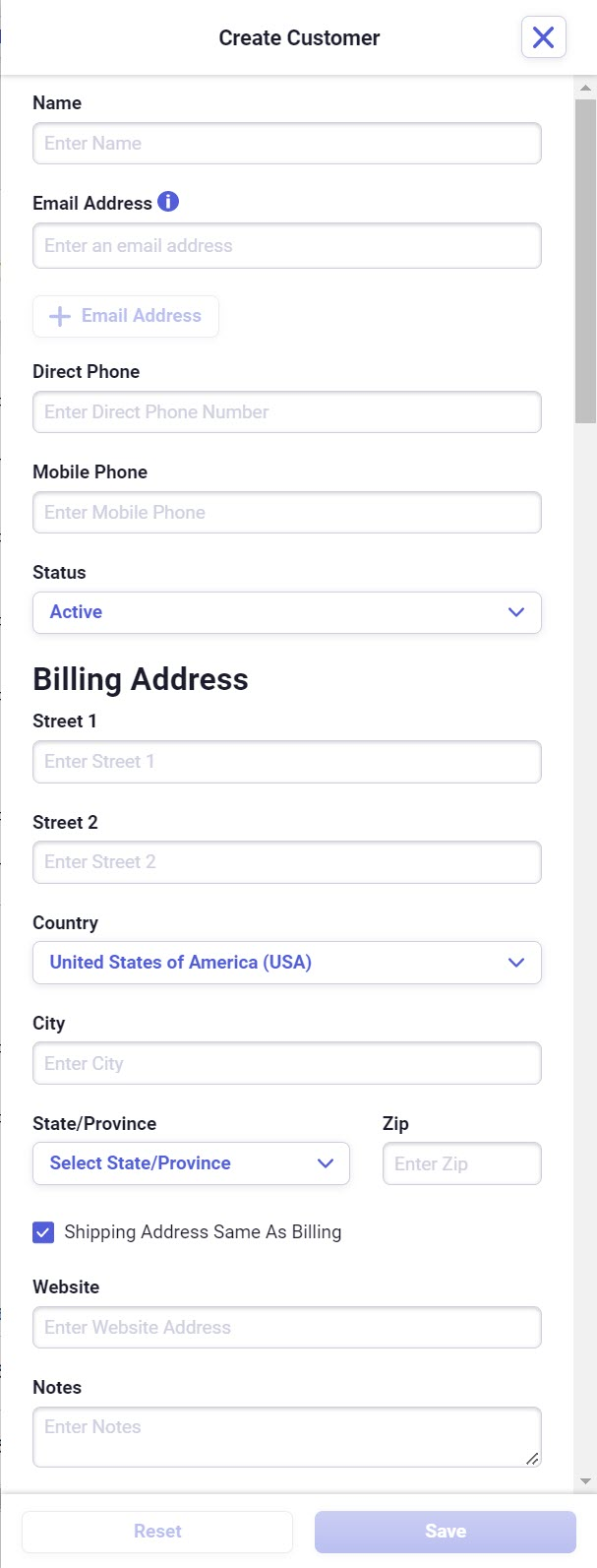
- Click on Create New Customer to open the new customer fields.

- Enter your customer’s information. Only Name and Email are required to create a customer. Use + Email Address to add more than one email address. Click Save to add your customer.
- Repeat to add more customers
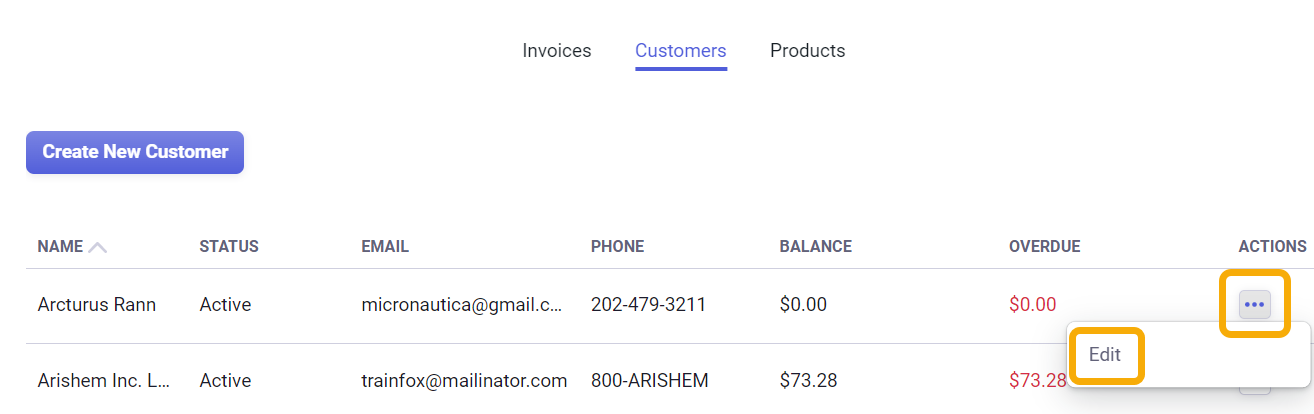
- Click on the [...] Actions button, then Edit to edit your customers.
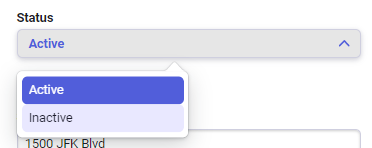
Please Note: At this time, you cannot delete customers you have created. However, you can mark a customer as Inactive in the Edit menu. Inactive customers will still show up in your customer list, but will not show up in your lists while creating invoices.
How do I add new products or services?
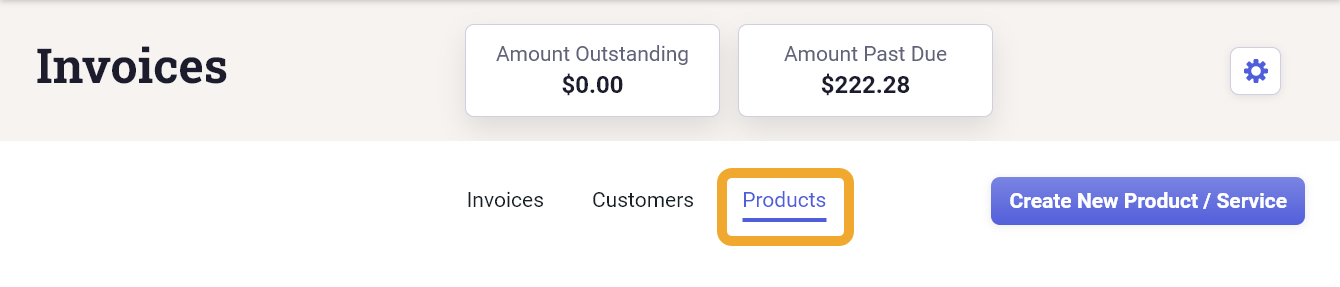
You can manually add products and services to Neat following the steps below, or you can import products and services to Neat from a CSV list.- Click on Products above the invoice grid to open the Product view.
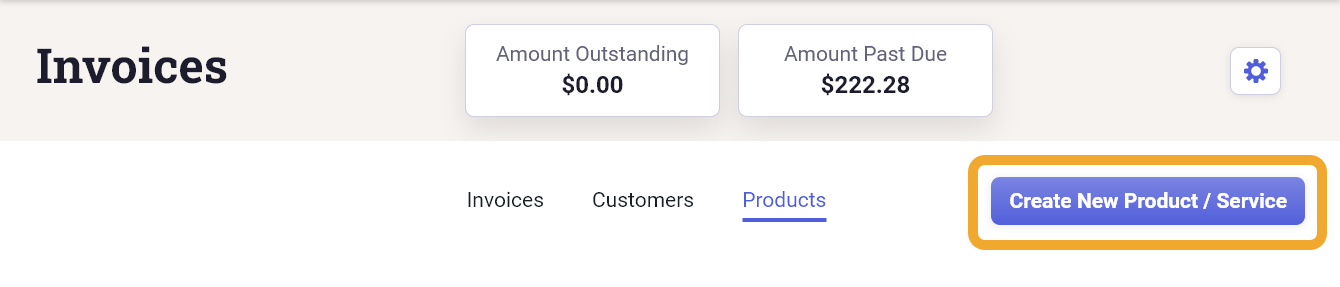
- Click on Create New Product / Service to open the new product form.
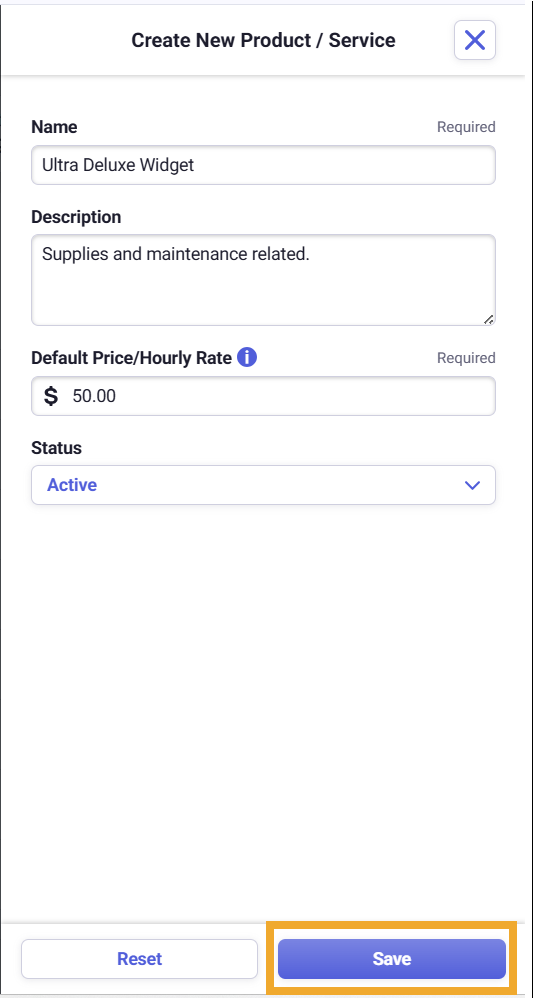
- After entering all Product information, click Save to store your product.
- Repeat to add more products.
- Click on the [...] Actions button, then Edit to edit your products or services.
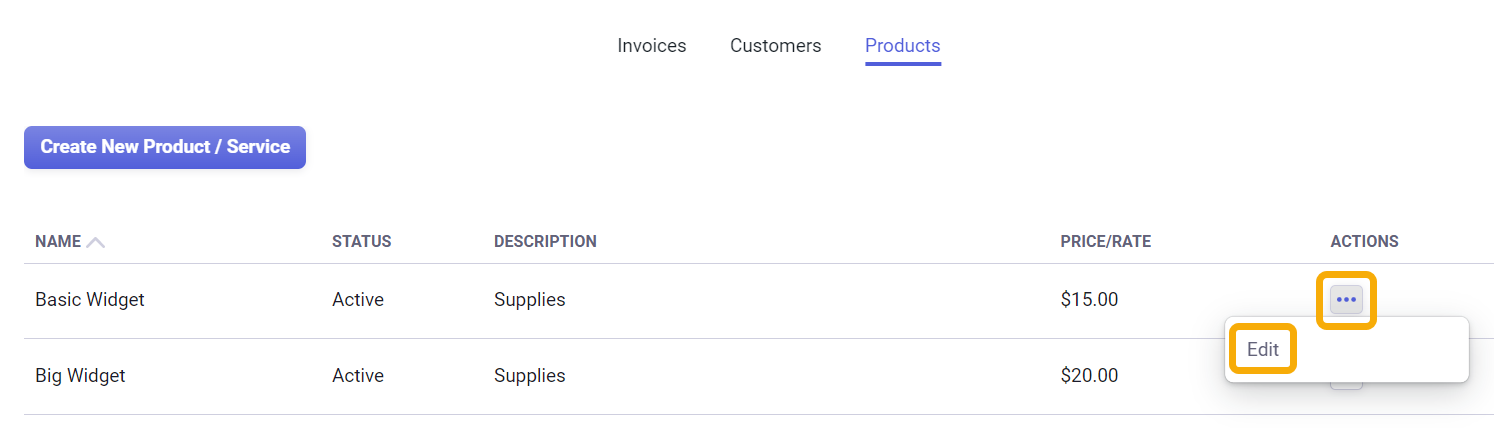
- When finished click Save. Click Reset if you do not wish to save the changes.

Please Note: At this time, you cannot delete products or services you have created. However, you can mark a product or service as Inactive in the Edit menu. Inactive products and services will still show up in your products list, but will not show up in your lists while creating invoices.
How do I manage my invoices using actions?
You can view & access ALL available actions for your invoices by going to the Actions column in the Invoice grid and clicking the [...] Action button next to the invoice you want to manage. You have the following options:
Edit
Allows you to make changes to:
Edit
Allows you to make changes to:
- Customer
- Invoice Date
- Terms
- Payment Date (if set to Custom)
- Edit or Remove Items
- Add a Product, Service, Discount, Fee, or Note
Please Note: Not all invoices can be edited. Invoices marked as Void, Partial Payment, or Paid can no longer be edited.
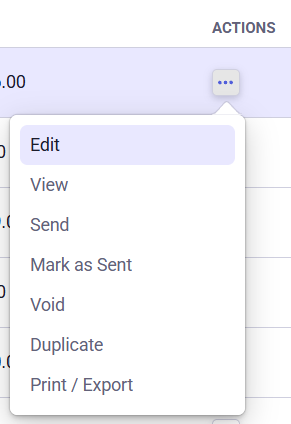
View
Displays a copy of the invoice as it will appear after it is sent.
Send Reminder
Schedule automatic follow-up emails to remind your customer of an upcoming due date or past due balance.
Send
Sends the invoice to the email address on your customer's profile. (Not available in Void invoices.)
Mark as Sent
Changes the invoice status from draft to sent. This cannot be reversed.
Please Note: Only invoices in Draft status can be marked as sent.
Print/Export
Opens a PDF copy of the invoice that can be printed and mailed.
Void
Changes the invoice status to void and cannot be undone. Voided invoices only have actions available for View, Print/Export, and Duplicate. (Not available in Partial Payment, Paid, or Void invoices.)
Duplicate
Creates a copy of the invoice in Draft status.
Manage Payments
Allows you to record and manage payments on an invoice. Selectable payment types include Cash, Bank/ACH, Check, Credit Card, and Other. You can also enter a Description, Payment Date, Payment Amount, and Notes. The Payment Date must be either the current date or a past date but cannot be a future date. This will change the invoice status to Paid or Partial Payment depending on the amount paid. For more information on payments, see this Help Center article: How to Record and Manage Invoice Payments in Neat.
Please Note: Manage Payments is ONLY available for Sent invoices, not drafted or voided invoices.
Save to File Cabinet
You can save a copy of an invoice to your File Cabinet when you email it to your customer or manually mark it as sent. You can also save existing invoices that are no longer in Draft status. This makes it easy to keep your invoices alongside your other business documents. Saving invoice to your Neat Cabinet.
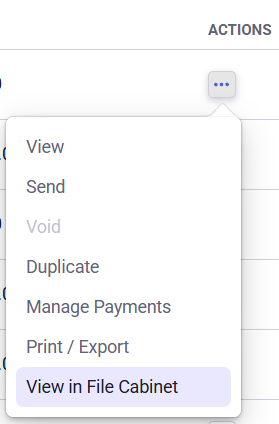
View in File Cabinet
Invoices saved to your File Cabinet from Invoicing include an option to open the invoice in Invoicing. Likewise, invoices in Invoicing that have been saved to your File Cabinet include an option to view the saved file. Viewing invoices you sent to your Neat Cabinet.
How do I sort and filter my invoices?
SortingYou can sort the order of your invoices by Due date, Invoice number, and by Invoice date. Click directly on one of these column headings to change the sorting order of your invoices.

Filtering
You can filter your invoices by Invoice status, Invoice date, Customer, and Invoice number.

How do I send a copy of an invoice to a customer?
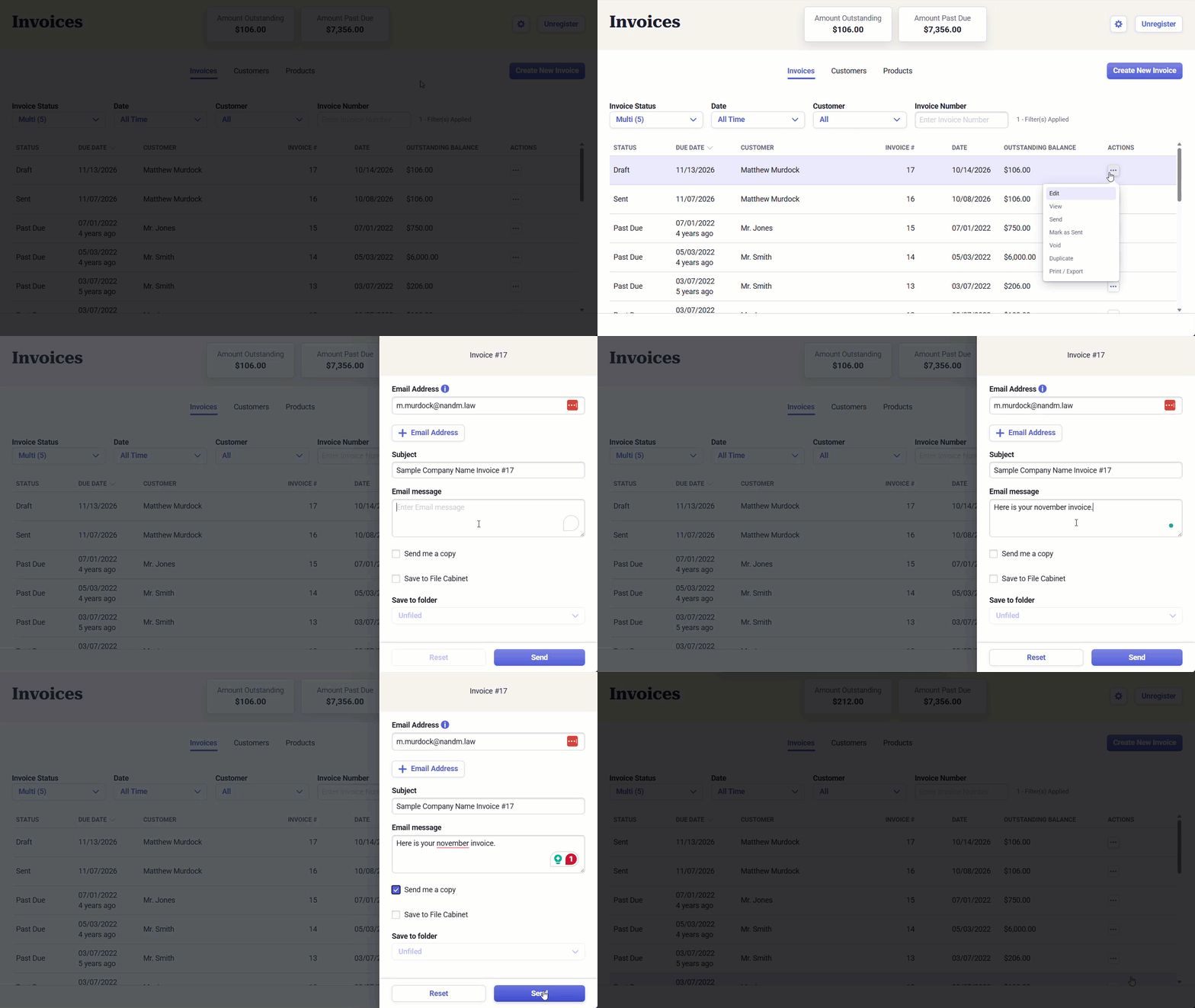
- Open your invoices.
- Find the invoice you wish to send from the list of invoices.
- Click the [...] Action button then, click Send.
- Ensure the Email Addresses field is correct. Use + Add Recipient to add multiple email addresses to send your invoice.
- Add an optional Email Message if desired. The subject cannot be edited.
- Optional: Check the Send me a copy box. When you send your invoice, Neat will also send you a copy of the invoice to the email address on your invoices profile.
- Optional: Check the Save to File Cabinet box and select a folder from your Neat File Cabinet. When you send your invoice, Neat will also save a copy of the invoice in your Neat File Cabinet in the folder you selected. Click here for more on saving invoices to your Neat File Cabinet
- When finished, click Send to deliver your invoice. Currently, invoices are sent from no-reply@neatcloud.com rather than your own email address.
Please Note: If you find your emails are ending up in the recipient's spam or junk mail folder, please advise them to mark the emails from Neat as safe or "not spam" so they wil begin to appear in their regular inbox, making them easier to find.
How do I save a copy of an invoice to my Neat File Cabinet?
You can save a copy of an invoice to your File Cabinet when you email it to your customer or manually mark it as sent. You can also save existing invoices that are no longer in Draft status. This makes it easy to keep your invoices alongside your other business documents.Payment status is automatically updated
When you update an invoice’s payment status in Invoicing, the saved copy in your File Cabinet is automatically updated to reflect the change.
Choose what to do with voided invoices in your File Cabinet
If you void an invoice that has been saved to your File Cabinet, Neat prompts you to confirm the action. Select the Move the invoice from my file cabinet to the trash checkbox if you also want to move the saved invoice file to the trash.
When you save an invoice to your File Cabinet, Neat includes the following information with the invoice file:
- Customer
- Invoice Date
- Invoice Number
- Due Date
- Amount
- Payment Status
- Invoice Image
Access your invoice from both Invoicing and My File Cabinet
Invoices saved to your File Cabinet from Invoicing include an option to open the invoice in Invoicing. Likewise, invoices in Invoicing that have been saved to your File Cabinet include an option to view the saved file.
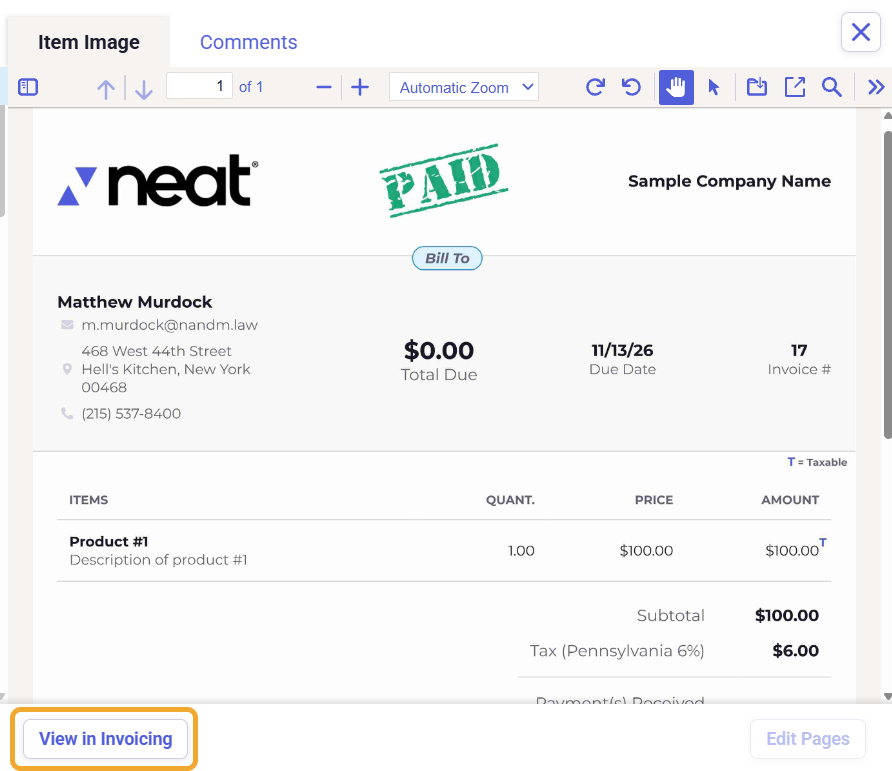
Editing invoices you sent to your file cabinet
Once an invoice has been emailed to a customer or manually marked as sent, it is locked and can no longer be edited. You can still open the invoice in preview mode to view its details. Invoices saved to your File Cabinet from Invoicing cannot be edited directly in the File Cabinet. You can open the invoice in Invoicing to view its details.
What is the difference between amount outstanding and amount past due?
An outstanding balance is the amount due on an invoice before the actual due date. For example, if an invoice is created for a customer with a balance of $25 due two weeks from the current date, then the balance will read as outstanding. A balance for a customer will read as “past due” for customers who did not pay their balance by the due date.
Please Note: If your outstanding or past-due amounts look incorrect, then we recommend refreshing your web page to ensure the page is up to date with your latest changes.
