Importing Customer, Product, and Service Lists to Neat Invoicing
Easily bring your existing data into Neat with our NEW CSV import feature! Whether you're switching from another system or simply consolidating your records, you can now upload CSV files to quickly add customers, products, and services to Neat Invoices in just a few steps. This feature helps eliminate manual data entry, reduces errors, and ensures your information is organized and ready to use right away.How to import a CSV list of customers
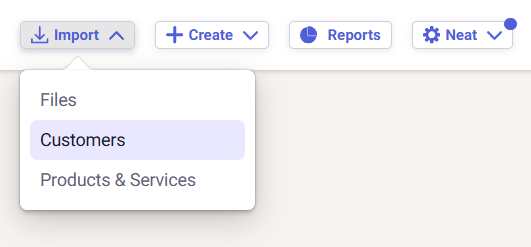
- Log into Neat and click Import in the top right-hand menu. Then click Customers from the drop-down.
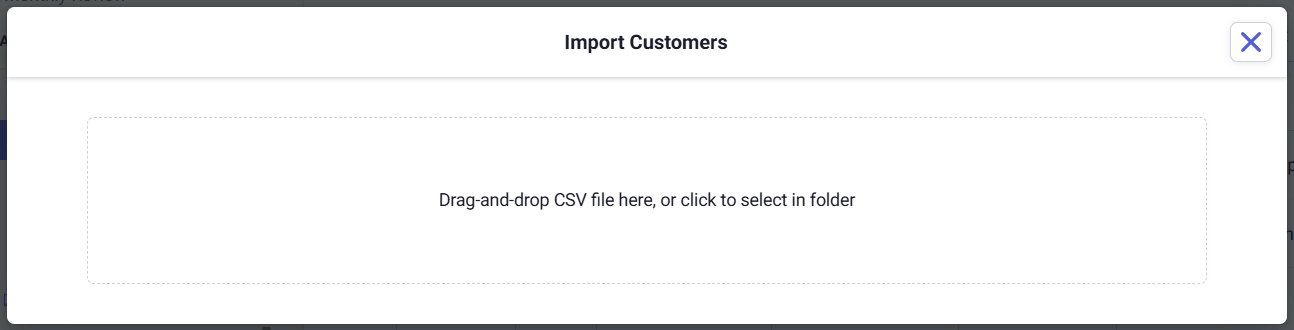
- Drag and drop your list into the box, or browse to and select your CSV list of customers to import.
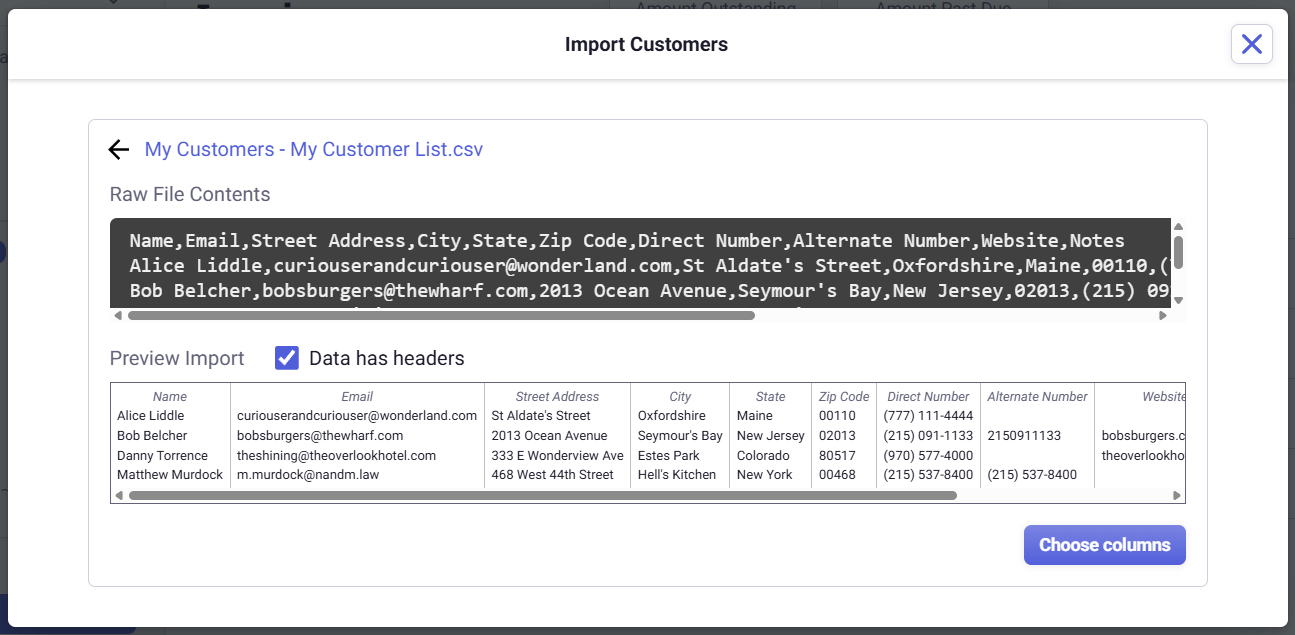
- In the Preview Import window, check the box Data has headers if your CSV list has headers. When you are ready, click Choose columns to map your data to fields in Neat.
- Map your data to Neat. Drag your data (listed at the top as A, B, C, D, etc.) down to the Neat field you would like the data to be mapped to. When you are done, click Import.
Please Note: You must map the Name field to continue. All other fields are optional.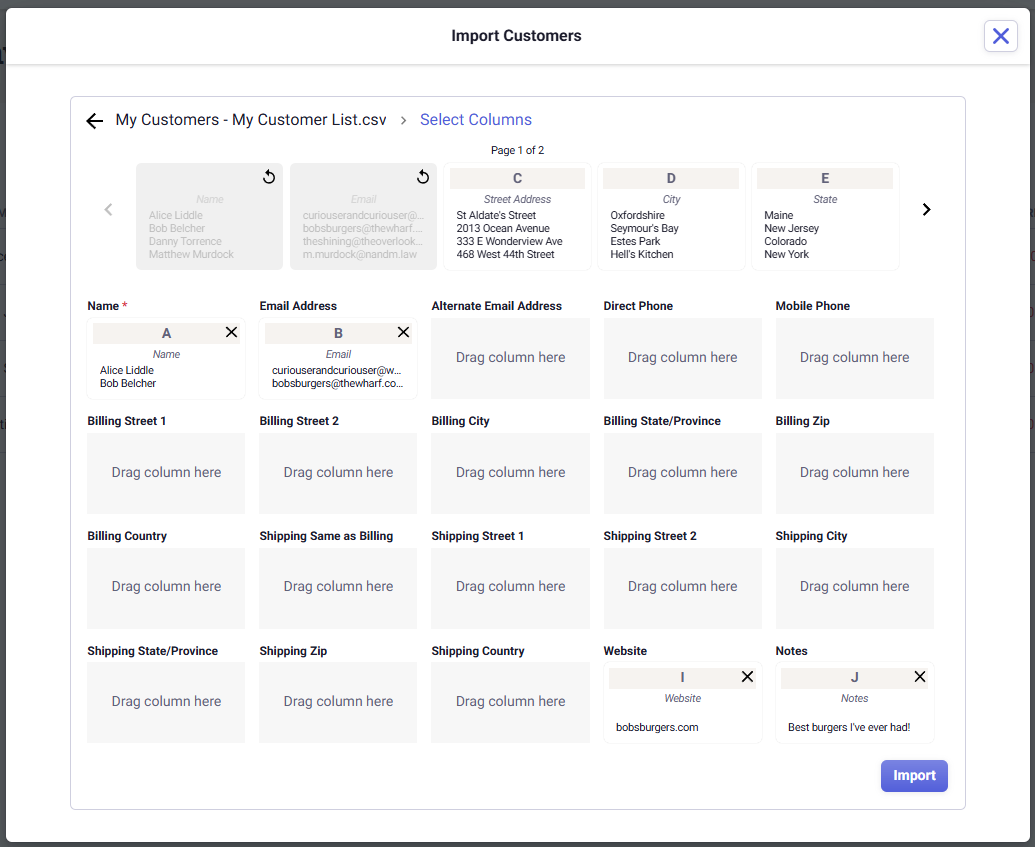
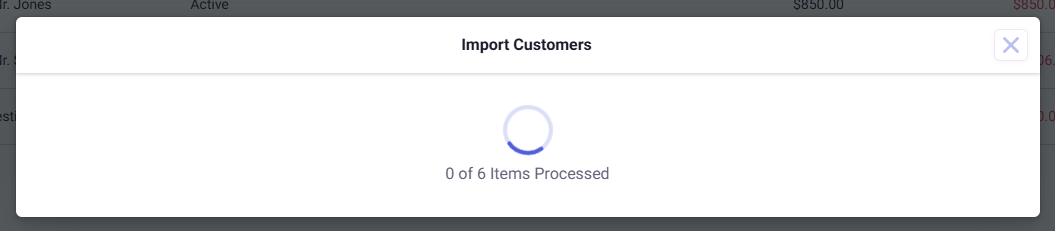
- It will take Neat a few moments to import your mapped data. The more data you import, the longer the import will take.
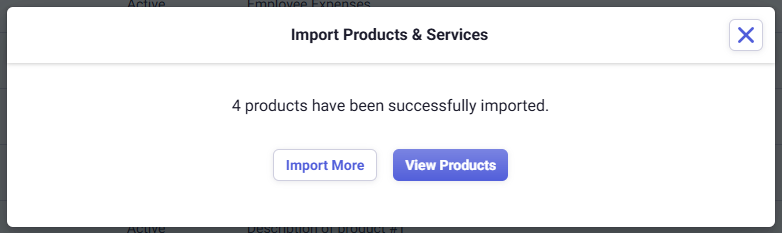
- Once the import is complete, Neat will show you a summary of the import process and will list any errors it encountered during the import.
Please Note: Neat validates the data you import and will not allow you to import duplicate customer entries to Neat.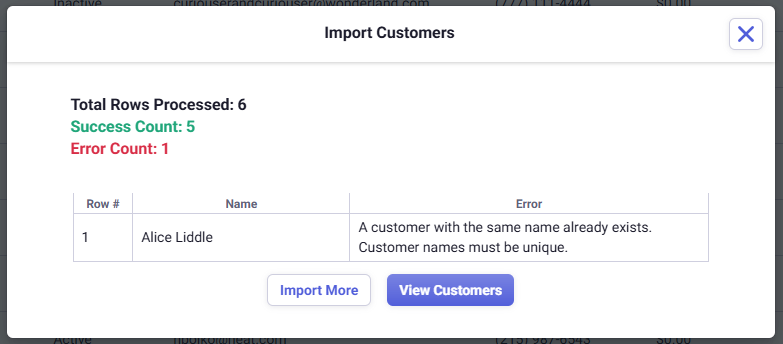
How to import a CSV list of products and/or services
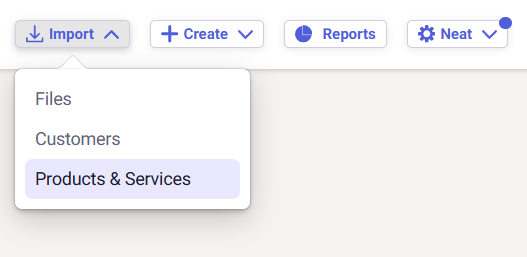
- Log into Neat and click Import in the top right-hand menu. Then click Products & Services from the drop-down.
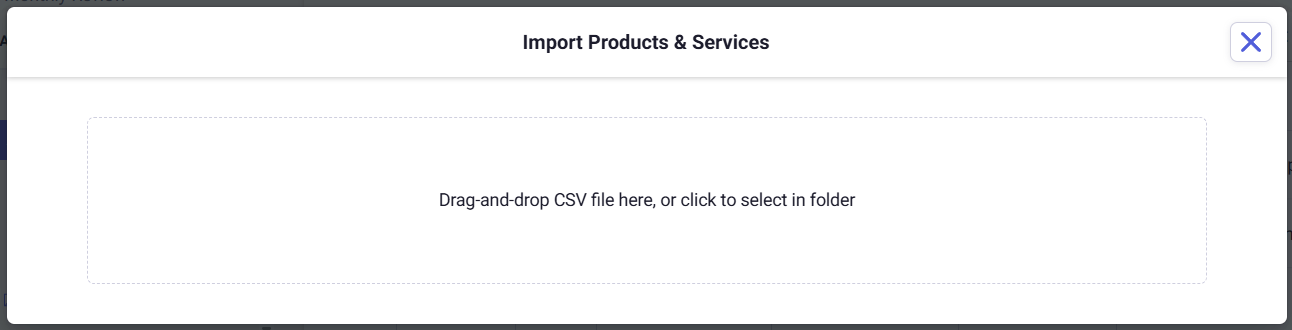
- Drag and drop your list into the box, or browse to and select your CSV list of products & services to import.
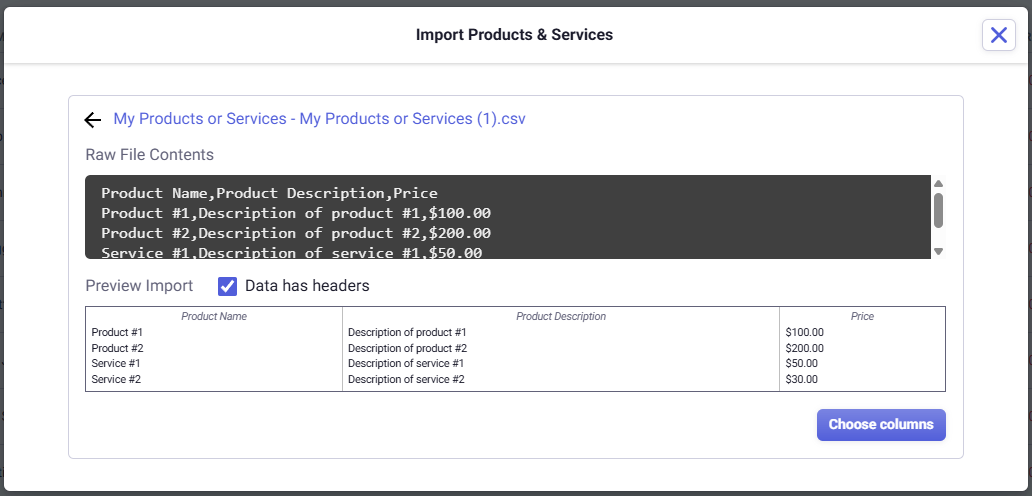
- In the Preview Import window, check the box Data has headers if your CSV list has headers. When you are ready, click Choose columns to map your data to fields in Neat.
- Map your data to Neat. Drag your data (listed at the top as A, B, and C) down to the Neat field you would like the data to be mapped to. When you are done, click Import.
Please Note: At this time, you can only map your product or service name, a description for it, and the price or rate for the item. You must map the Name and Price/Rate field to continue. All other fields are optional.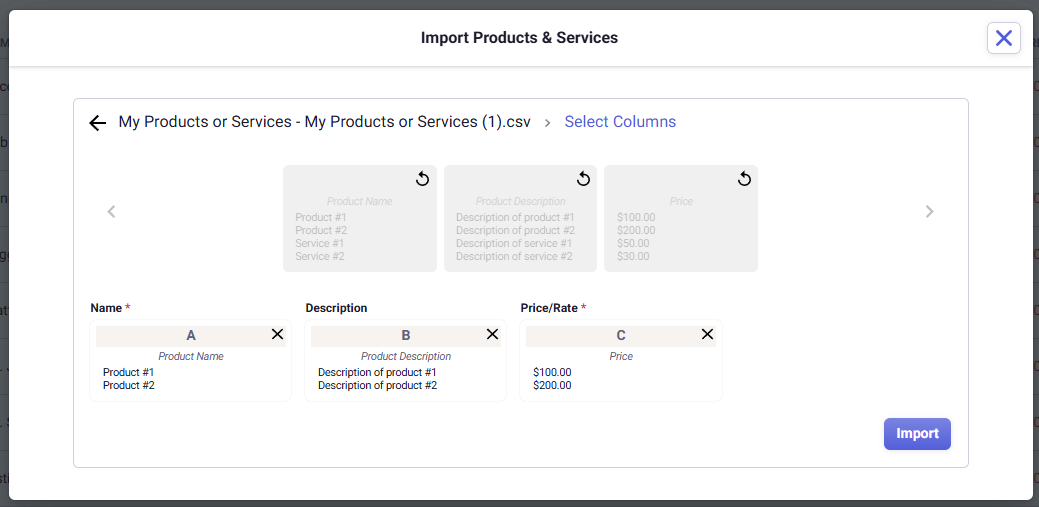
- It will take Neat a few moments to import your mapped data. The more data you import, the longer the import will take.
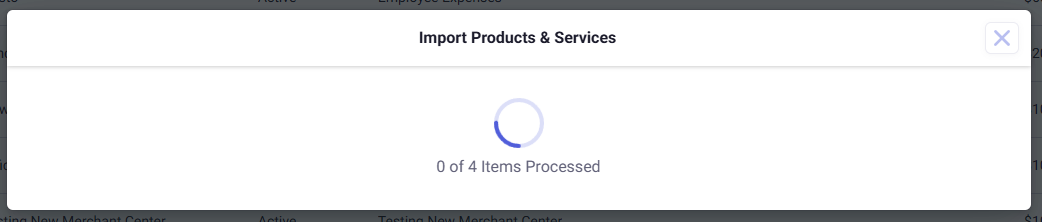
- Once the import is complete, Neat will show you a summary of the import process and will list any errors it encountered during the import.
Please Note: Neat validates the data you import and will not allow you to import duplicate products or services to Neat.