How to Record and Manage Invoice Payments in Neat
Neat allows you to accept all types of payments for your invoices and manually record payments when your customers pay. Learn how to mark invoices as partially paid or paid, add and manage payments, track outstanding balances, update payment records, and send payment receipts to your customers.Invoice Payments FAQs
- Manually record a payment
- Add another payment to a partial payment
- Manage your payments
- Send payment receipts to your customer
Manually record a payment
- Find a Sent, Partially Paid, or Past Due invoice you need to record a payment for. Click the [...] Action button.
- Click Manage Payments.
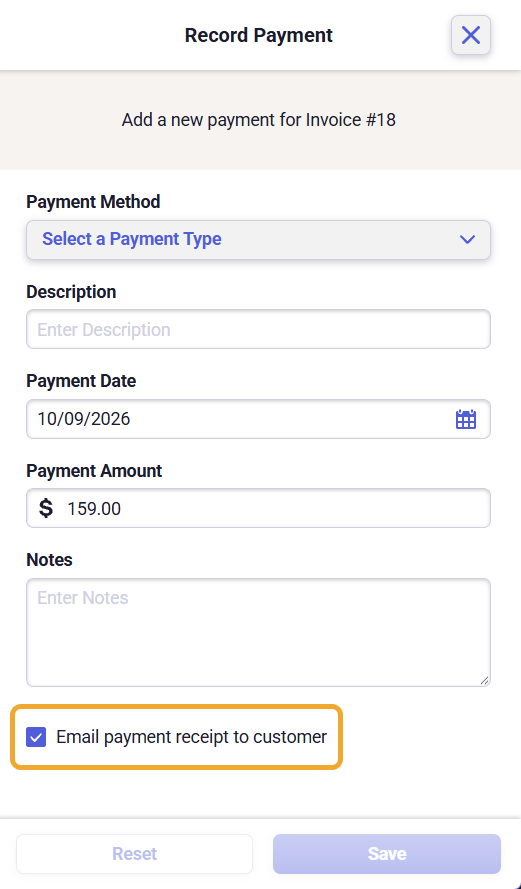
- In the Record a Payment modal, enter details about your payment. Select your payment method from the payment method dropdown, enter a description, a payment date, payment amount, and notes.
- Check the box to Email payment receipt to customer to send a copy of the payment receipt to your customer.
- When you're done, click Save.


Add another payment to a partial payment
- To manage your invoice payments or add another payment, locate the invoice that needs to be updated and click the [...] Action button, then the Manage Payments button.
- In the Manage Payments window, click Add Payment.
- In the Record a Payment modal, enter details about your payment. Select your payment method from the payment method dropdown, enter a description, a payment date, payment amount, and notes.
- Check the box to Email payment receipt to customer to send a copy of the payment receipt to your customer.
- When you're done, click Save.


Manage your payments
- To manage the invoice payments for a particular invoice, click the [...] Action button, then the Manage Payments button.
- In the Manage Payments window, you can see a list of all the payments you have recorded for this invoice.
- Click the red trash button to delete a payment.
- Click the arrow to view the details you recorded for your payment and payment activity history.
You can also download a copy of the receipt or send the receipt to your customer.

Send payment receipts to your customer
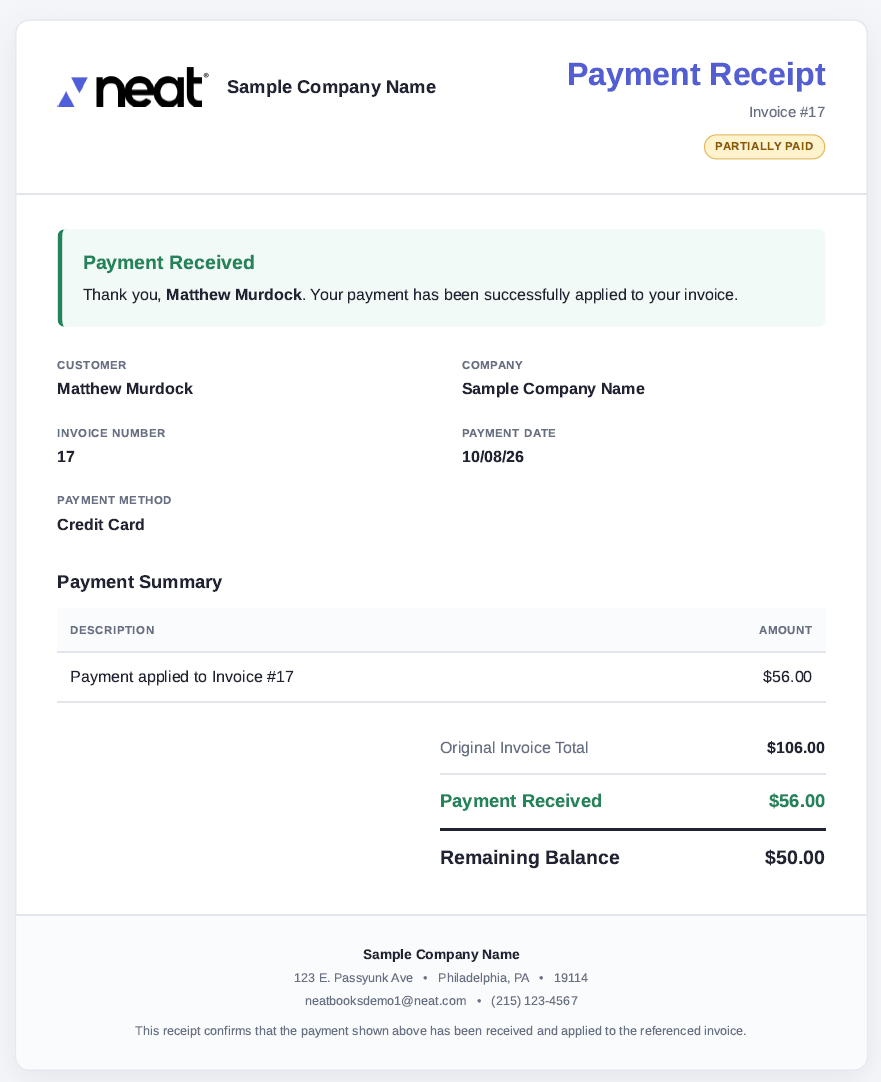
There are several ways to send your customer a payment receipt in Neat. You can email a receipt as soon as you record a full or partial payment, or send it later if you need to access the receipt again. Sending payment receipts helps keep your customers informed, provides them with a record of their payments, and makes it easier for both you and your customers to track payment activity and maintain accurate financial records.
Option 1: Email a receipt when recording a payment
The easiest way to send a receipt is to select the option to email the receipt to your customer when recording a full or partial payment.
Option 2: Send a receipt for a previously recorded payment
- You can resend your receipt to a customer or send a receipt for any previously recorded payments by clicking the [...] Action button, then the Manage Payments button.
- In the Manage Payments window, you can see a list of all the payments you have recorded for this invoice.
- Click the arrow to view the details you recorded for your payment and payment activity history.
- Click Download Receipt to download the receipt as a PDF file.
- Click Send Receipt or Resend Receipt to email your customer a copy of their payment receipt.