Create a Year-End Expense Report in Neat
A year-end expense report gives you a complete view of your expenses for the year. In Neat, you can use your expense data to quickly find, review, and export the expenses you need for your records or tax preparation. Whether you're preparing for tax season, reviewing your spending, or sharing information with your accountant, Neat makes it easy to gather your expenses into one report.Before you begin
Before creating your year-end report, make sure your expense receipts and documents have been uploaded to Neat and that the information you want included has been reviewed for accuracy.For the most complete report, check that your expenses have the correct:
- Date
- Vendor
- Amount
- Category
- Payment method, if applicable
- Incorrect dates or amounts
- Missing or incorrect expense categories
- Duplicate expenses
- Expenses that still need review
Create your Year-End Expense Report
Once you've reviewed your records, you're ready to create your report.- Click Reports at the top right corner of Neat.

- Under Spend / Tax Reporting, choose the option that matches the type of information you want to include in your report:
- File Cabinet: Use this option to create a report from files stored in the Organize My Files section.
- Transactions: Use this option to create a report from transactions in the Do My Books section.
 Please Note: The Transactions option and report toggle are only available with an Automated Insights plan. If you have a Neat Base plan, you may only see the File Cabinet option.
 - Then, under the Spend / Tax Reporting section, click Expense Report to begin creating your report.
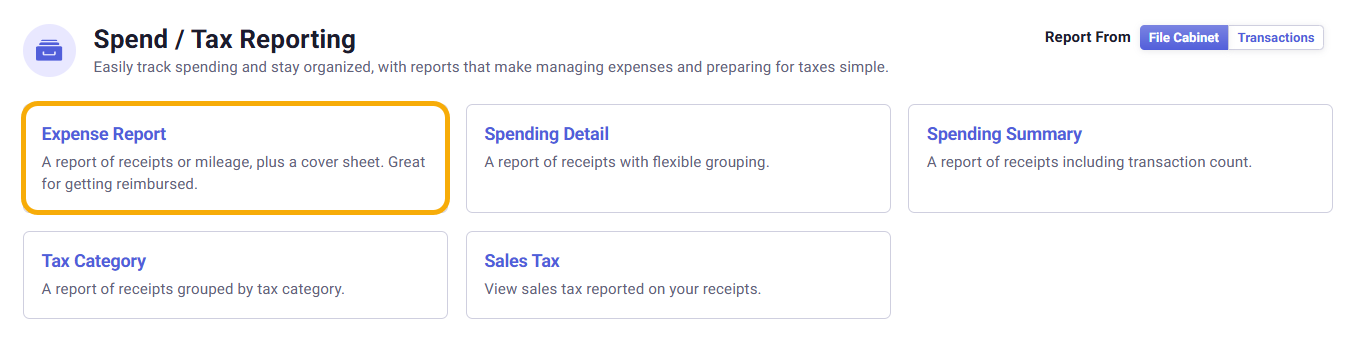
- Filter the Date Range to this year, then click Next.
For example:
January 1, 2026 – December 31, 2026
If you use a fiscal year instead of a calendar year, select the appropriate start and end dates for your reporting period. - If you want to further analyze your expenses, File Cabinet reports have an additional option to export the report data as a CSV file too. Check the Download a CSV File checkbox in the lower right corner of Step 3. This option is not currently available for Transactions reporting. A CSV file can be opened in applications such as Microsoft Excel or Google Sheets. This allows you to sort, filter, calculate totals, or perform additional analysis on your expense data.
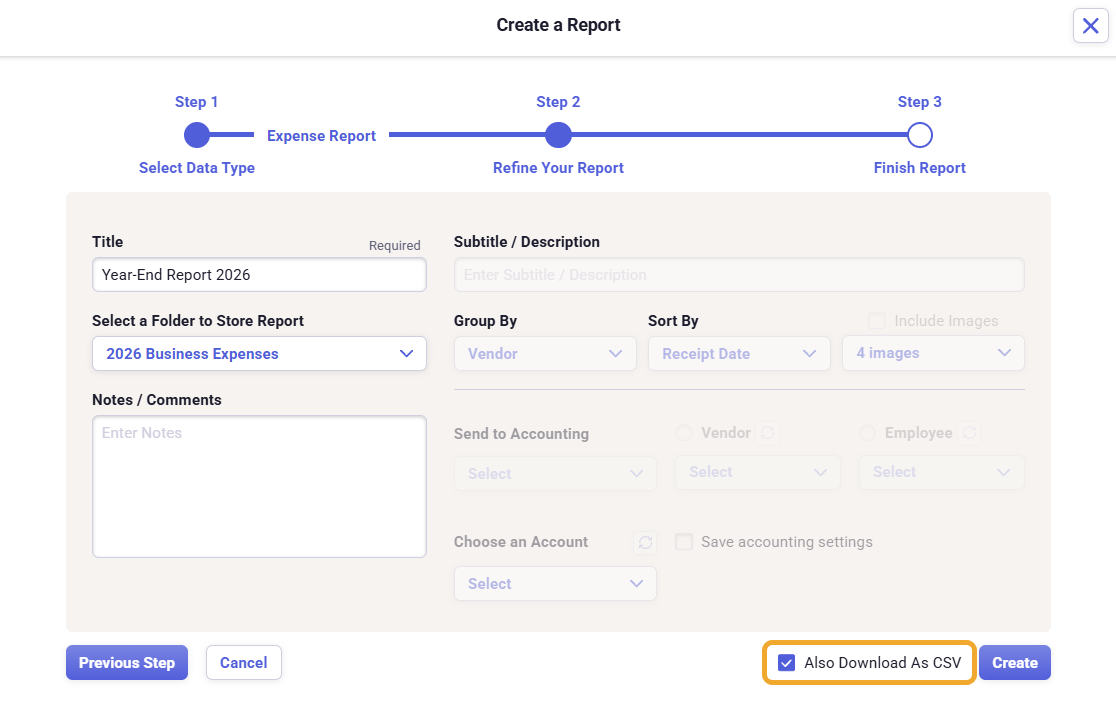
- Once you finish adding your final touches to the report, click Create in the bottom right corner then your report will be generated and can be accessed in your Saved Reports folder in your File Cabinet. If you chose to download your report data as a CSV file, then the new CSV file will be downloaded to your computer and can be found in your Downloads folder.
