Create Manual Accounts and Adjustments
Neat + Automated Insights users can now create manual transaction accounts in Neat. You can also create manual transactions and adjustments for those accounts. You won't need to enter financial credentials in order to see the account or transactions in Neat, but by the same token, the account will not automatically update. You can update it by creating transactions or adjustments.Manually created accounts will appear in the list alongside all other connected accounts in the transaction section of Neat in both the Neat web app and the Neat mobile app.
Manual Account FAQs
- What account types can I manually create?
- How do I create a manual account?
- How do I update manually-created accounts?
- How do I make Transactions?
- How do I make Adjustments?
- How can I create manual transactions or adjustments for my connected streaming accounts?
What account types can I manually create?
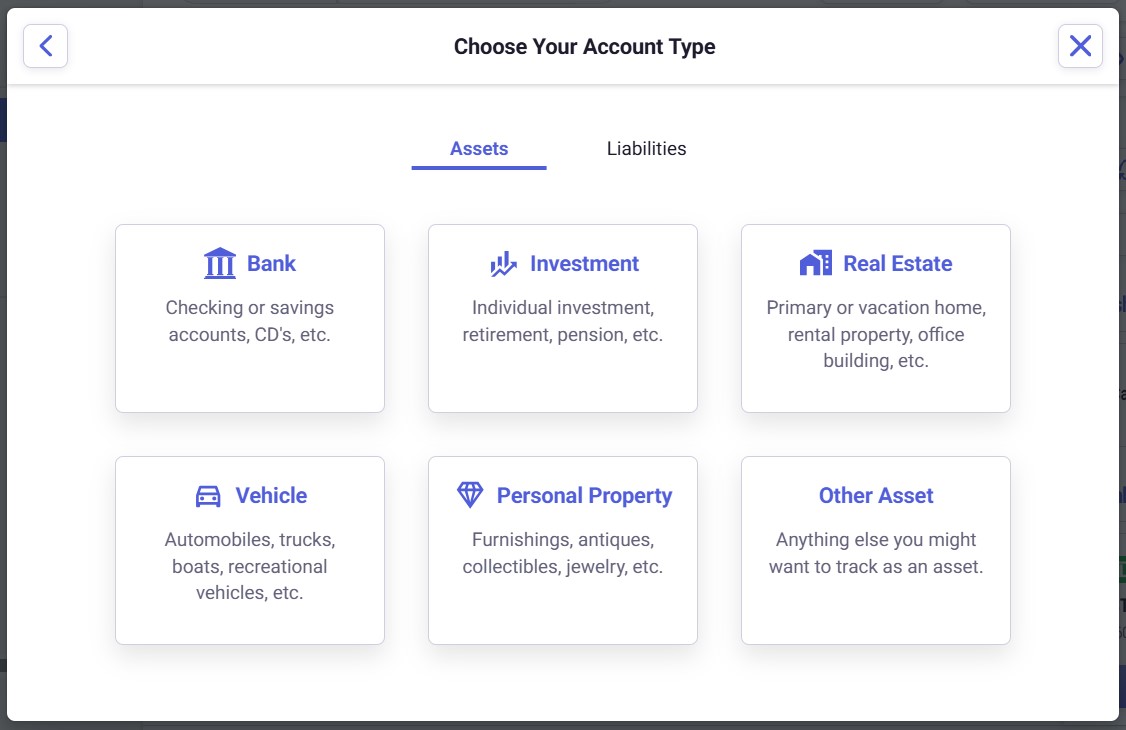
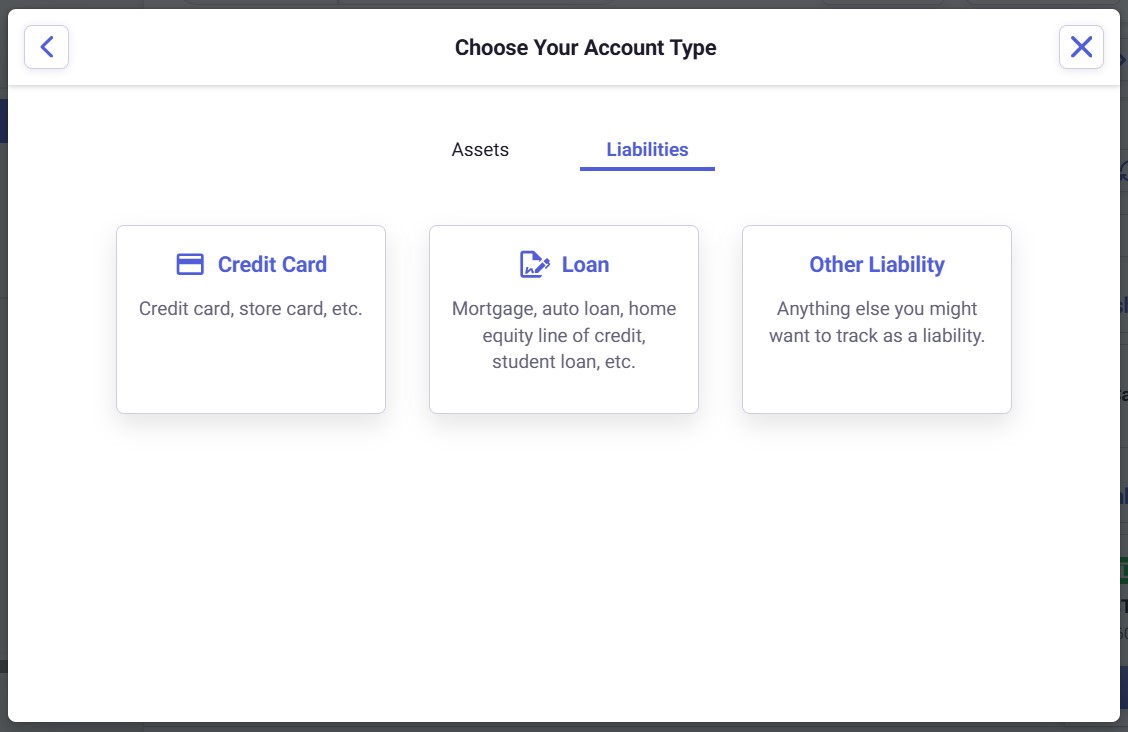
Available account types come under the headings of Assets or Liabilities. You can create any of the following account types manually:Assets
- Bank
- Investment
- Real Estate
- Vehicle
- Personal Property
- Other Asset
Liabilites
- Credit Card
- Loan
- Other Liability
How do I create a manual account?
- Before you can create a manual account, you must first connect a streaming account.
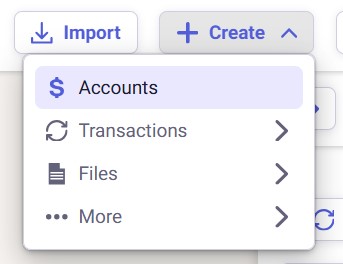
- Click the +Create button at the top right in Neat. Then click Accounts.
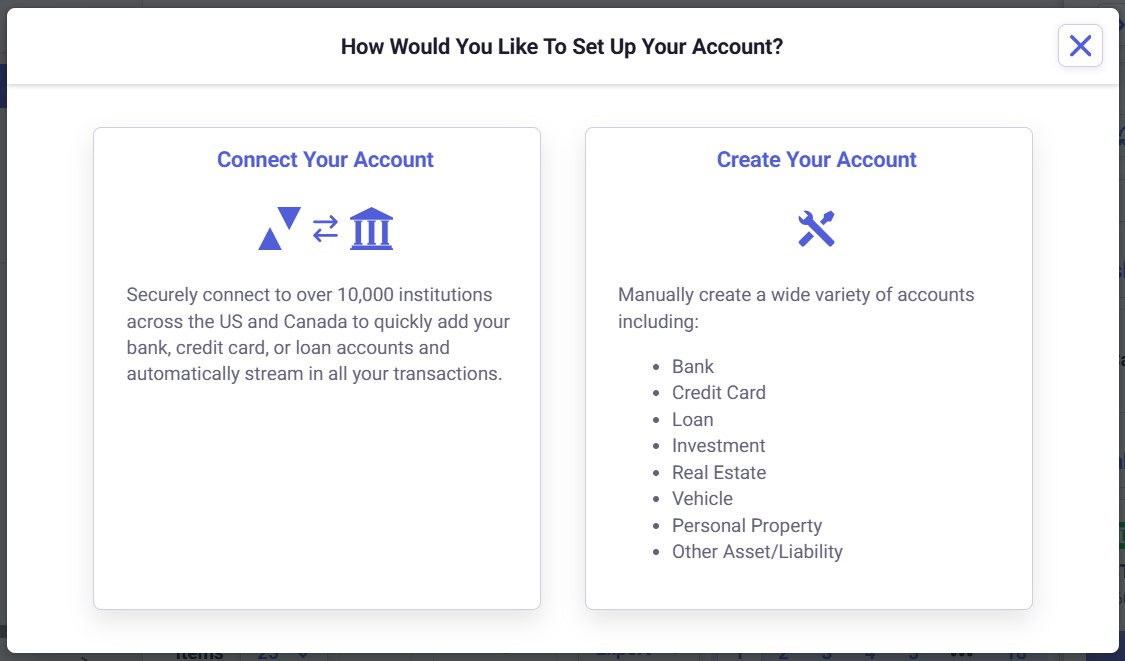
- Choose Create Your Account.
- Select Assets or Liabilities.
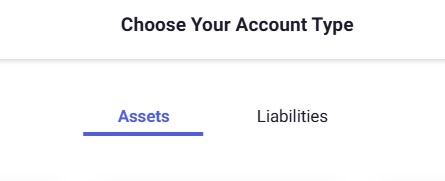
- Select an Account Type.
- Complete the data in the pop-up:
- Account Name - This field is required.
- Account Sub-Type - The options are specific to the account type selected.
- Balance / Estimated Value - This will be the starting balance or value of the account. You can make adjustments as needed. Balance appears for Liabilities, Bank, and Investment accounts. All others have a Value field.
- As Of - The date of the balance or value entered.
- Click Create Account when finished. Your new account will appear in the Active Accounts list on the right.
How do I update manually-created accounts?
Manually-created accounts are not connected to a financial institution. Therefore, they are updated manually through transactions or adjustments in Neat.The ability to create transactions or adjustments will vary by the account type you create. For instance, a manually created bank account is available for both transactions and adjustments, but is limited to only one type of adjustment: Record a Transfer of Funds Between Accounts; while a Vehicle account is not available for transactions at all but is available specifically for two adjustments: Adjust an Asset's Current Value and Record Depreciation/Amortization.
How do I make Transactions?
- Click +Create.
- Click Transactions.
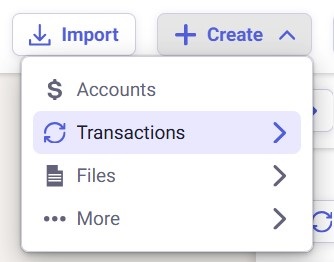
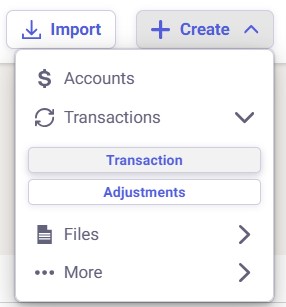
- Select Transaction.
- Complete the fields with the appropriate data.
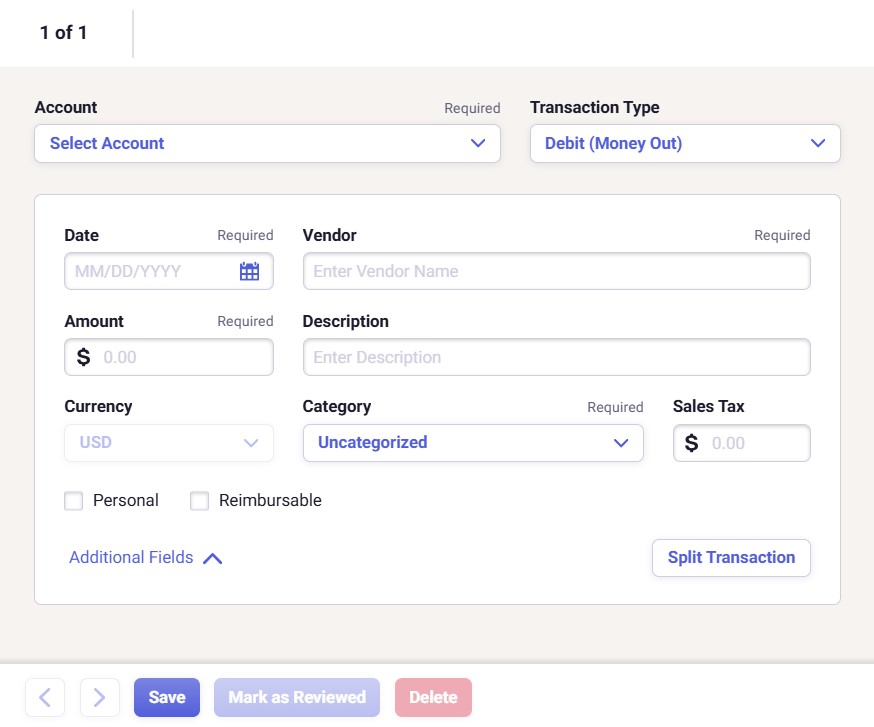 Note: There are four required fields: Date, Vendor, Amount, and Category.
Click Additional Fields in the lower left for more optional categories, including Tax Category, Customer, Project, Notes, and more.
- Click Save in the bottom left to finish your transaction.
How do I make Adjustments?
- Click +Create.
- Click Transactions.
- Select Adjustments.
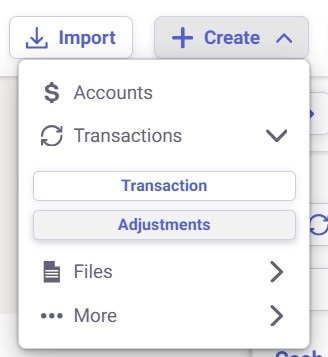
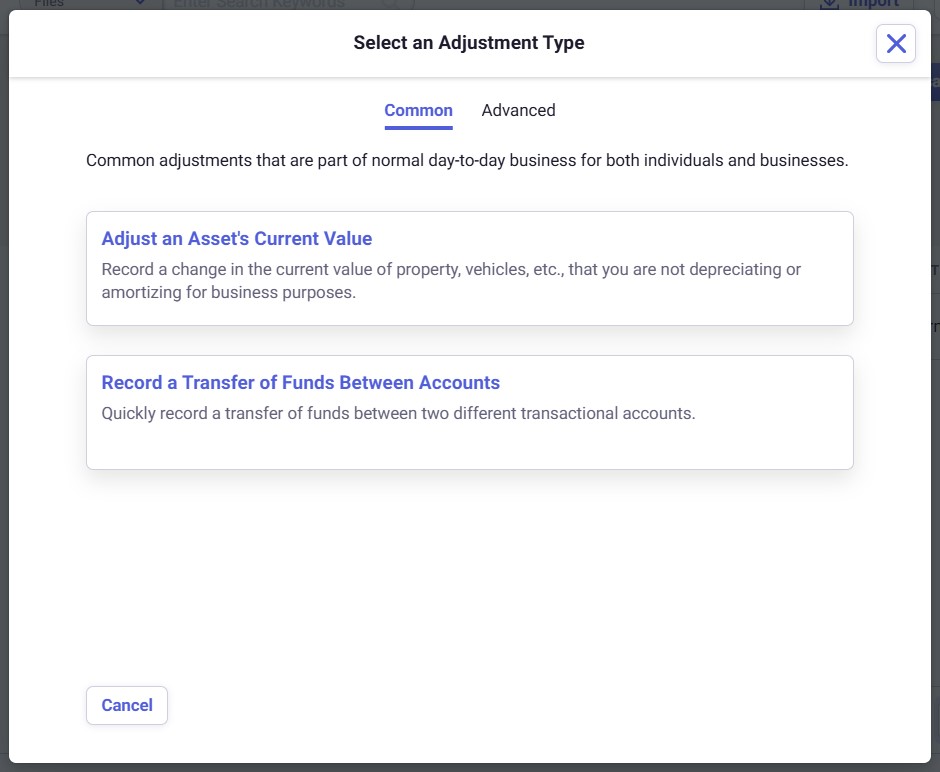
- The Select an Adjustment Type window will appear. You can choose Common or Advanced at the top.
- Common adjustments are Adjust an Asset's Current Value and Record a Transfer of Funds Between Accounts.
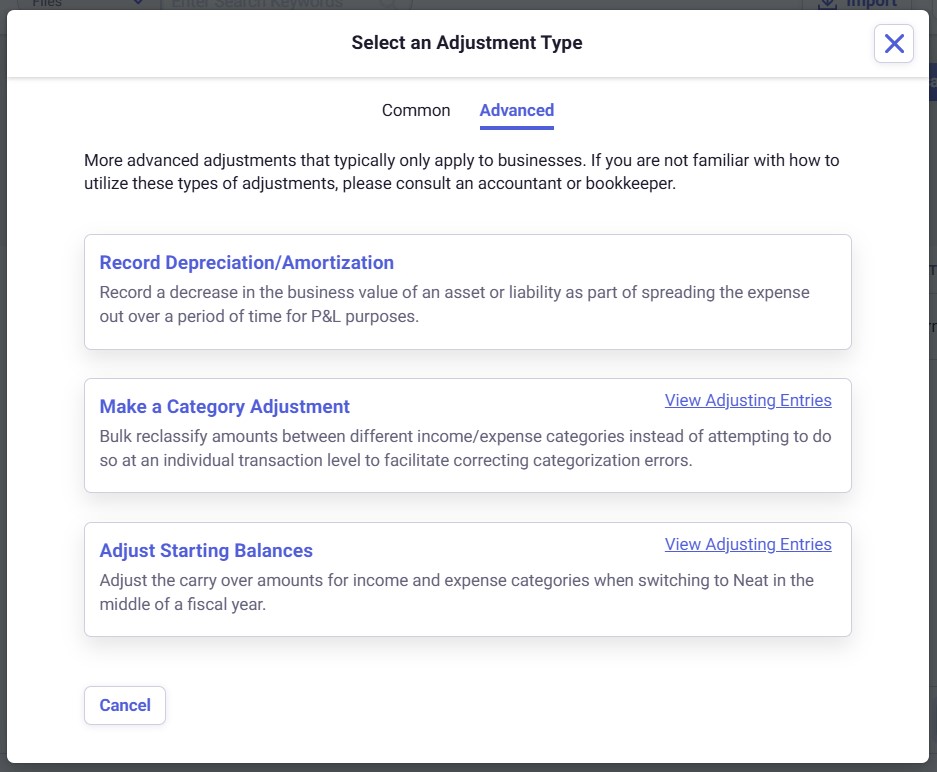
- Advanced adjustments include Record Depreciation/Amortization, Make a Category Adjustment, and Adjust or Set Starting Balances.
- After selecting the adjustment type, complete the fields in the new window and click save in the lower right to finish creating your adjustment.
