Batch Capture Documents & Receipts with the Neat Mobile App
Need to capture several receipts, documents, or other items at once? Batch capture makes it easy to capture multiple items in a row using your phone and upload them to Neat all at once. Instead of capturing an item, waiting for it to upload, and then starting over, you can keep capturing while you're working through a stack of documents or receipts. When you're finished, upload everything together.Why use batch capture?
Save timeCapture multiple items in a row without stopping to wait for each item to upload. When you're finished, upload them together.
Keep your workflow moving
You can stay in capture mode and focus on taking clear pictures of your items instead of repeatedly starting and stopping the upload process. You can also review your captures, edit images, and update item information before uploading.
Choose how your items are organized
Batch capture gives you two upload options:
- Separated: Each capture becomes its own item in Neat. This is ideal for capturing multiple individual receipts, invoices, or documents.
- Combined: Multiple pages are added to one item. Use this when several pages belong to the same document.
How to batch capture and upload files using the Neat Mobile App
The process is similar on both Android and iOS.- Open the Neat Mobile App.
- Go to Files and select Capture.
- Choose Take a Photo.
- Capture your first item. With auto-capture enabled, Neat can automatically detect the edges of your item and take the picture for you. You can also switch to manual capture if needed.
- After capturing your first item, continue capturing until you've finished with your stack of documents or receipts.
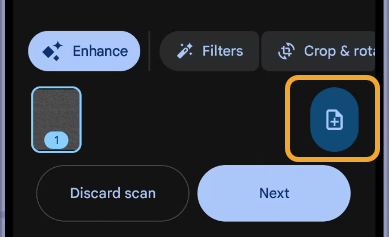
- On Android, tap the + (plus) button to continue capturing more items. Edit your images if you choose. Tap Next when you have finished batch capturing.
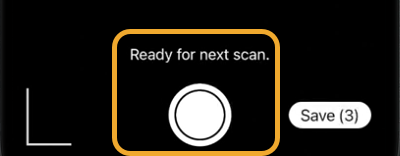
- On iOS, simply continue capturing additional items. Edit your images if you choose. Tap Save only when you have finished batch capturing.
- On Android, tap the + (plus) button to continue capturing more items. Edit your images if you choose. Tap Next when you have finished batch capturing.
- When prompted, choose:
- Separated to capture individual items that will be uploaded as separate items.
- Combined to add additional pages to the same item.
- Next, review, edit, and categorize your captures.
For more information on how to capture files with the Neat Mobile App, check out these How-To support articles:
Capturing with Android
Capturing with iOS
Review your batch captures
Before uploading your files to Neat, you can review all of your captures and edit your files before they are saved in Neat.You can:
- View all captures in the batch.
- Retake or delete individual captures.
- Crop or rotate images.
- Apply image filters or enhancements. Enhancing or applying filters to your images may improve readability and help Neat's OCR and data-parsing processes recognize information more accurately.
- Add or edit item information.
- Add notes to your captures.
- Choose a folder for your items.
If you selected Separated, each individual capture will be uploaded as its own item. If you selected Combined, the pages will be uploaded together as a single multi-page item.
Example: Quickly capture a week's worth of receipts
Let's say you have 15 receipts sitting on your desk after a business trip. Instead of uploading each receipt individually:Capture receipt → Capture another → Keep going, capturing the rest of your receipts → Edit your images → Review your data → Upload all 15 receipts together
Choose Separated, and Neat will create 15 individual items.
This makes batch capture a convenient way to get a large number of receipts or documents into Neat quickly, so you can spend less time uploading and more time organizing and reviewing your information.
You can also batch import receipts & images in your phone's photo gallery
Batch uploads aren't limited to pictures you take with your phone's camera. You can also import multiple images from your device's photo gallery.- Open Files > Capture.
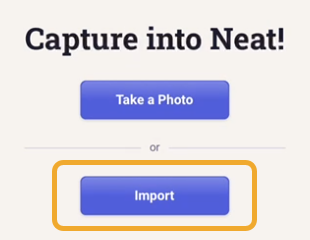
- Select Import.
- Select multiple images from your device.
- Select Confirm.
- Choose Separated or Combined, depending on how you want the images organized.
- Review your captures and upload them to Neat.
