Getting Started Checklist for Storing and Managing Documents in Neat
Get up and running with Neat in no time! This simple, step-by-step checklist helps you set up Neat to store, organize, and manage your documents with confidence.
Getting Started Checklist
- Read Essential Knowledge
- Download, Install, and Configure the Tools Needed to Get Files into Neat
- Set Up your Folder Structure
- Upload and Organize your Documents
Step 1: Read Essential Knowledge
If you haven't done so already, we highly recommend reading our Essential Knowledge for Storing and Managing Documents in Neat Help Center article. This article walks you through three essential key concepts and tools for storing and managing documents in Neat. It also includes many of our best tips and tricks for making the most out of Neat! From understanding item types in Neat, to getting files into your account, to setting up a folder structure that works for your workflow.Step 2: Download, Install, and Configure the Tools Needed to Get Files into Neat
There are five ways to upload files to Neat! Every document you add to Neat, regardless of how you uploaded it, is processed with OCR (Optical Character Recognition), transforming your files into keyword-searchable items, so you can quickly find what you need. After uploading files to Neat, check the Needs Review quick filter to quickly access all newly added files, regardless of what folder you uploaded them to. Click on an upload method below to learn how to set it up.
Neat Pro Tip: To make the most out of Neat, we recommend using ALL the available upload methods. Doing so can help you stay organized all year long!
For Physical Documents that need to be digitized, there are two ways to upload files to Neat. These upload methods require that you download, install, and set up certain tools before you can start using them:
For E-Documents, or documents that are already digitized, there are three more ways to upload those files to Neat. Email-forwarding and importing do not require that you install any additional software to use these tools. However, Print-to-Neat does require an installation and configuration process:
Neat Mobile App Capture
Our mobile app transforms your smartphone or tablet into a scanning powerhouse. Snap crystal-clear pictures of your documents instantly within the mobile app, turning your device into a documentation tool with just one click. Beyond camera capture, you can also seamlessly import documents directly from your device's photo gallery. All Neat Cloud subscriptions include access to the Neat Mobile App.
To get started with the Neat Mobile App:
Capture Items with the Neat Mobile App
Our mobile app transforms your smartphone or tablet into a scanning powerhouse. Snap crystal-clear pictures of your documents instantly within the mobile app, turning your device into a documentation tool with just one click. Beyond camera capture, you can also seamlessly import documents directly from your device's photo gallery. All Neat Cloud subscriptions include access to the Neat Mobile App.
To get started with the Neat Mobile App:
- First, install the Neat Mobile App from your mobile device's app store. Text "Get Neat" to 267-367-NEAT (6328) to receive our mobile download link or click one of the links below:

- Next, open the Neat Mobile App and sign in to your Neat account.
- Click Capture.
- Click Take a Photo to use your device's camera to take a picture of the file you want to upload to Neat. OR, click Import to import files from your device's photo gallery to Neat.
Capture Items with the Neat Mobile App
Scanning - The Neat Desktop App
To scan files into Neat, you need the Neat Desktop App. The Desktop App is compatible with both Mac and Windows and is free to use with or without a Neat Cloud subscription. The Desktop App transforms your physical documents into digital items you can store, organize, and search for in your Neat Cloud account. The Desktop App is compatible with the 1000 series model Neat scanners (NM-1000, ND-1000, & NC-1000) and most 3rd party TWAIN-compliant scanners.
To get started with scanning:
Neat Desktop App FAQ
Have a ScanSnap scanner? Check out our Neat + ScanSnap Integration.
Having trouble getting your scanner connected? Please open a support case and a Neat support representative will be happy to help you!
To scan files into Neat, you need the Neat Desktop App. The Desktop App is compatible with both Mac and Windows and is free to use with or without a Neat Cloud subscription. The Desktop App transforms your physical documents into digital items you can store, organize, and search for in your Neat Cloud account. The Desktop App is compatible with the 1000 series model Neat scanners (NM-1000, ND-1000, & NC-1000) and most 3rd party TWAIN-compliant scanners.
To get started with scanning:
- First, with your scanner disconnected, install the Neat Desktop App.
- Next, install drivers for your scanner model. You can find drivers for the 1000 series model Neat scanners here.
- Connect your scanner to your computer. Your scanner should then appear in the scanner dropdown in the Neat Desktop App.
Neat Desktop App FAQ
Have a ScanSnap scanner? Check out our Neat + ScanSnap Integration.
Having trouble getting your scanner connected? Please open a support case and a Neat support representative will be happy to help you!
Email-Forwarding
With every Neat Cloud subscription, you get your own personalized Neat Cloud Email-In address (@neatcloud.com). Using your Neat Cloud Email-In address, you can forward your e-receipts and other digital documents straight to Neat, and they’ll automatically appear in your account.
To get started with email forwarding:
Email-In Feature in Neat
With every Neat Cloud subscription, you get your own personalized Neat Cloud Email-In address (@neatcloud.com). Using your Neat Cloud Email-In address, you can forward your e-receipts and other digital documents straight to Neat, and they’ll automatically appear in your account.
To get started with email forwarding:
- Log in to your Neat account.
- Click your name at the top right corner of Neat, then in the drop-down click User Profile.
- Scroll down to the Your NeatCloud Email address section. Here you can see your unique NeatCloud Email-In address. Any emails you forward to that address will be uploaded, processed by Neat, and added to your Needs Review filter for you to review and organize.
The body of your email and its contents will be uploaded as one item to Neat, and any supported attachments (PDF, HTML, JPG/JPEG, BMP, PNG, and TIF/TIFF attachments) get uploaded and added to Neat as separate items. - In the Your NeatCloud Email address section, you can also set the default item type your forwarded documents get uploaded as. For example, choose Document if you forward mostly e-documents.
Neat Pro Tip: Save even more time by setting up email forwarding rules in your email accounts to forward common types of files to Neat the moment they hit your inbox.
For more information about email-forwarding and for a list of How-Tos, check out our Help Center Article:Email-In Feature in Neat
Importing
You can import all your digital files into Neat to make it easy to keep all your important documents organized and accessible in one place. Neat supports a variety of file types for importing, including PDF, JPG, TIF, PNG, and BMP. By bringing your files into Neat, you can quickly organize, search, and manage them without worrying about losing track of important information, making your workflow simpler and more efficient.
To get started with importing:
Import Items to Neat
By default, Neat starts you off with some sample folders that you can keep or delete. Folders are ordered alphabetically and numerically.
To create new folders in your structure:
To delete folders in your structure:
Option 1: Drag & Drop
You can import all your digital files into Neat to make it easy to keep all your important documents organized and accessible in one place. Neat supports a variety of file types for importing, including PDF, JPG, TIF, PNG, and BMP. By bringing your files into Neat, you can quickly organize, search, and manage them without worrying about losing track of important information, making your workflow simpler and more efficient.
To get started with importing:
- Log in to your Neat account.
- Click Import at the top right corner of Neat.
- Click Choose Files to browse through and select files on your computer. Or, drag and drop files from your computer to the Import window.
- Select the types of files you are importing from the Item Type drop-down.
- Then select the folder you want to save these files in from the Folder drop-down.
- Click Import. Your files will be imported to Neat and processed. Check your Needs Review quick filter to quickly access the imported files regardless of the folder you imported them to.
Import Items to Neat
Print-to-Neat
Print-to-Neat is a virtual printer and scanner you can use to send items to your Neat Desktop Application. Print-to-Neat lets you send documents, receipts, or other files directly to your Neat account as if you were printing them, except instead of going to a physical printer, they go straight into Neat digitally. You can use it from any program that can print, like a web browser, Word, or Adobe Acrobat. When you choose the Neat Virtual printer, your document is automatically captured, stored, and ready to organize in Neat, just like a scanned item. Print-to-Neat is a great tool for sending order confirmation pages to Neat after making a purchase, without printing or saving the order confirmation page. Print-to-Neat is currently only available on Windows devices.
To get started with Print-to-Neat:
Print-to-Neat in Windows
Print-to-Neat is a virtual printer and scanner you can use to send items to your Neat Desktop Application. Print-to-Neat lets you send documents, receipts, or other files directly to your Neat account as if you were printing them, except instead of going to a physical printer, they go straight into Neat digitally. You can use it from any program that can print, like a web browser, Word, or Adobe Acrobat. When you choose the Neat Virtual printer, your document is automatically captured, stored, and ready to organize in Neat, just like a scanned item. Print-to-Neat is a great tool for sending order confirmation pages to Neat after making a purchase, without printing or saving the order confirmation page. Print-to-Neat is currently only available on Windows devices.
To get started with Print-to-Neat:
- First, you must have the Neat Desktop Application installed.
- Then, in the Neat Desktop Application, you need to configure Print-to-Neat.
Once configured, the Neat Virtual Printer will become an available printer option in your printers list. Next time you open a document in a web browser, Word, or Adobe Acrobat that you want to save to Neat, click Print, then choose the Neat Virtual Printer from your printer list. When you print the document, the Neat Desktop App will open, and the document will appear in the scan utility to be sent to Neat!
Print-to-Neat in Windows
Step 3: Set Up your Folder Structure
A well-organized folder structure in Neat helps you store, find, and manage your documents efficiently. Neat’s File Cabinet lets you create folders and sub-folders tailored to your specific needs. Check out How to Setup a Folder Structure That Works for our recommended best practices and tips & tricks on setting up a folder structure that works and is scalable.By default, Neat starts you off with some sample folders that you can keep or delete. Folders are ordered alphabetically and numerically.
To create new folders in your structure:
- Select Organiz My Files, from the left hand menu.
- Right-click on My Cabinet to create a new parent folder or right-click on any parent folder to create a new subfolder and select New.
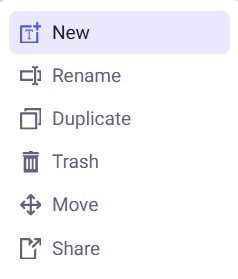
- In the New Folder window, you can change the folder location if you need to.
- Enter a name for your folder, then select Create.
- Neat will re-load, and your new folder will be in the location you confirmed in step 3.
To delete folders in your structure:
Option 1: Drag & Drop
- Locate the folder you want to delete.
- Select the folder and drag it to the Trash.
- Neat will re-load and your folder will be moved to the Trash. Any subfolders will also be moved to the Trash.
- To permanently delete the folder, empty your trash.
- Locate the folder you want to move to the trash.
- Right-click on the folder and select Trash.
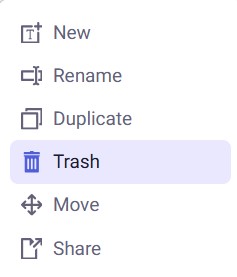
- Neat will re-load and your folder will be moved to the Trash. Any subfolders will also be moved to the Trash.
- To permanently delete the folder, empty your trash
Step 4: Upload and Organize your Documents
Once you’ve completed the other getting-started steps, you’re ready to begin uploading your documents to Neat! Below is our recommended workflow for uploading and organizing your documents in Neat, so everything stays easy to find and manage.- Upload your physical and digital documents to Neat using the five upload methods.
- Find all your newly uploaded documents in the Needs Review quick filter, regardless of the folder you saved the file in.
Neat Pro Tip: Think of the 'Needs Review filter' as the 'New Files filter'.

- Open each file and check that the file Details are accurate and make sure your file is saved in the right folder within your database.

- Add other tags to your file in the Classification section. Adding other tags helps you to filter, sort, and find files in your database with ease.

- Add Notes to your file. File notes are included in keyword searches and will also help you locate files more quickly.

- Save your file and move to the next file in the list.
Once you open and review a file from the Needs Review quick filter, the file will no longer appear in the filter.

- Work through your list of newly added documents, reviewing them for accuracy, adding classification tags, and notes until you have reviewed all your newly added documents and the Needs Review quick filter is empty.
