Payables Reporting in Neat
Creating payables reports gives you a clear overview of anything you need to pay, so you can stay organized and keep on top of bills and upcoming payments. The report options allow you to review all your bills, whether paid or unpaid, focus on the payment status of specific vendors, and keep an eye on what's overdue and what's coming due soon. To learn about ALL the available reports in Neat, check out our Reporting Overview Help Center article.Payables Reporting in Neat
- What types of payables reports can I run in Neat?
- How do I create a payables aging report?
- How do I create a vendor detail report?
- How do I create a bill detail report?
What types of payables reports can I run in Neat?
There are three types of payables reports you can create. Payables Aging: The Payables Aging report provides a clear view of all outstanding bills, organized by how long they’ve been unpaid. Use this report to quickly see which bills are due or overdue, prioritize follow-ups, and stay on top of your accounts payable to manage your cash flow.Vendor Detail: The Vendor Detail report provides a detailed view of each vendor’s outstanding balances, payment history, and past transactions. Use this report to track what you owe each vendor, monitor payment history, and manage accounts more effectively.
Bill Detail: The Bill Detail report provides a comprehensive view of every bill, including amounts, dates, status, and related customer information. Use this report to review bill activity, verify accuracy, and manage billing or follow-ups efficiently.

How do I create a payables aging report?
- First, click Reports at the top right-hand corner of Neat.

- Under the Payables Reporting section, click Payables Aging to create your report.
- The Payables Aging Summary Report will automatically generate from all Bills that are not marked as Paid.
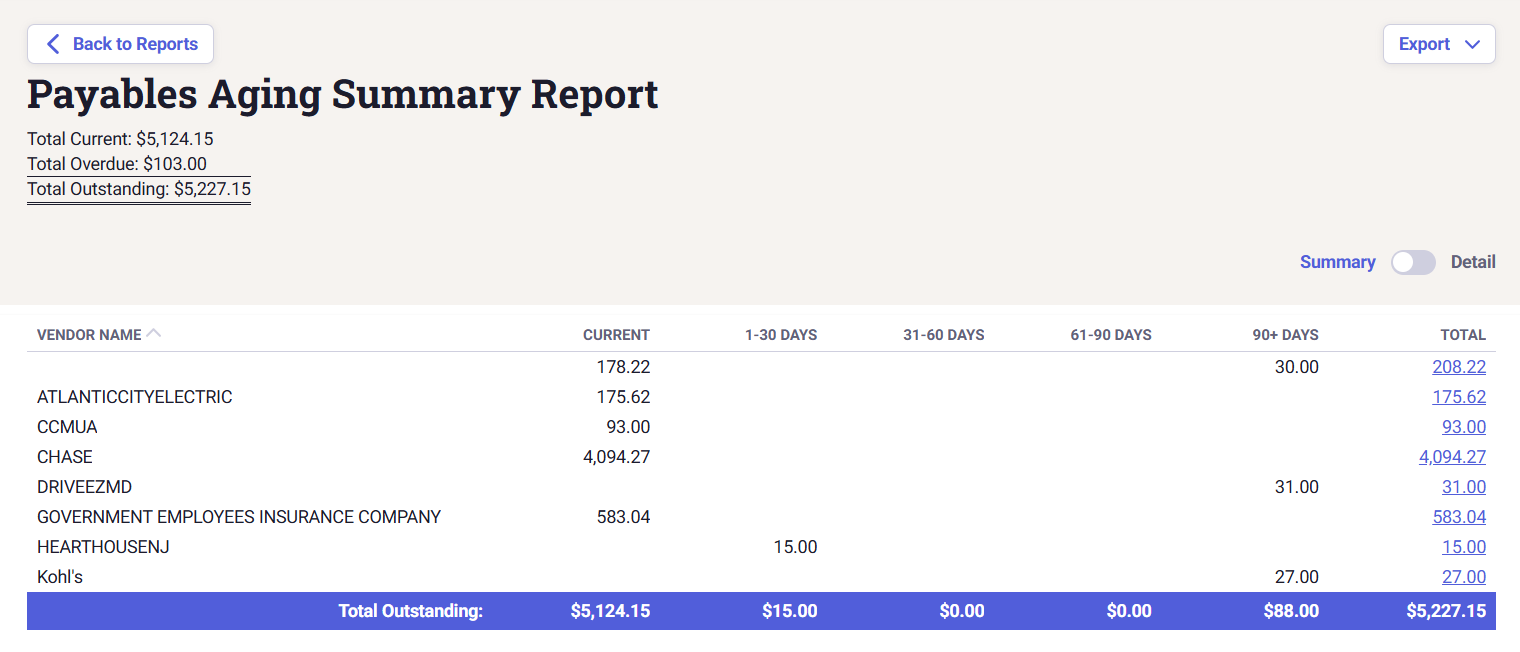 Neat Pro Tip: Click the amount for any total to see a detailed list of bills driving that amount.
 - To get the Payables Aging Detail Report, toggle from Summary to Detail in the upper right (below the Export button.)
- The Payables Aging Detail Report allows you to filter the following to customize your report and narrow down the results:
- Bill Date
- Bill Due Date
- Vendor
- You can click Export to save the report as a PDF or CSV. You can also email a copy of the report.
Please Note: At this time, you cannot save a payables aging report in Neat. This is a feature enhancement that is coming soon. In the meantime, you can save a copy of the report in Neat by emailing a copy of your report to your Neat Cloud email-in address.
How do I create a vendor detail report?
- First, click Reports at the top right-hand corner of Neat.
- Under the Payables Reporting section, click Vendor Detail to create your report.
- The Vendor Detail Report will show all unpaid bills for all time and all vendors in Neat.
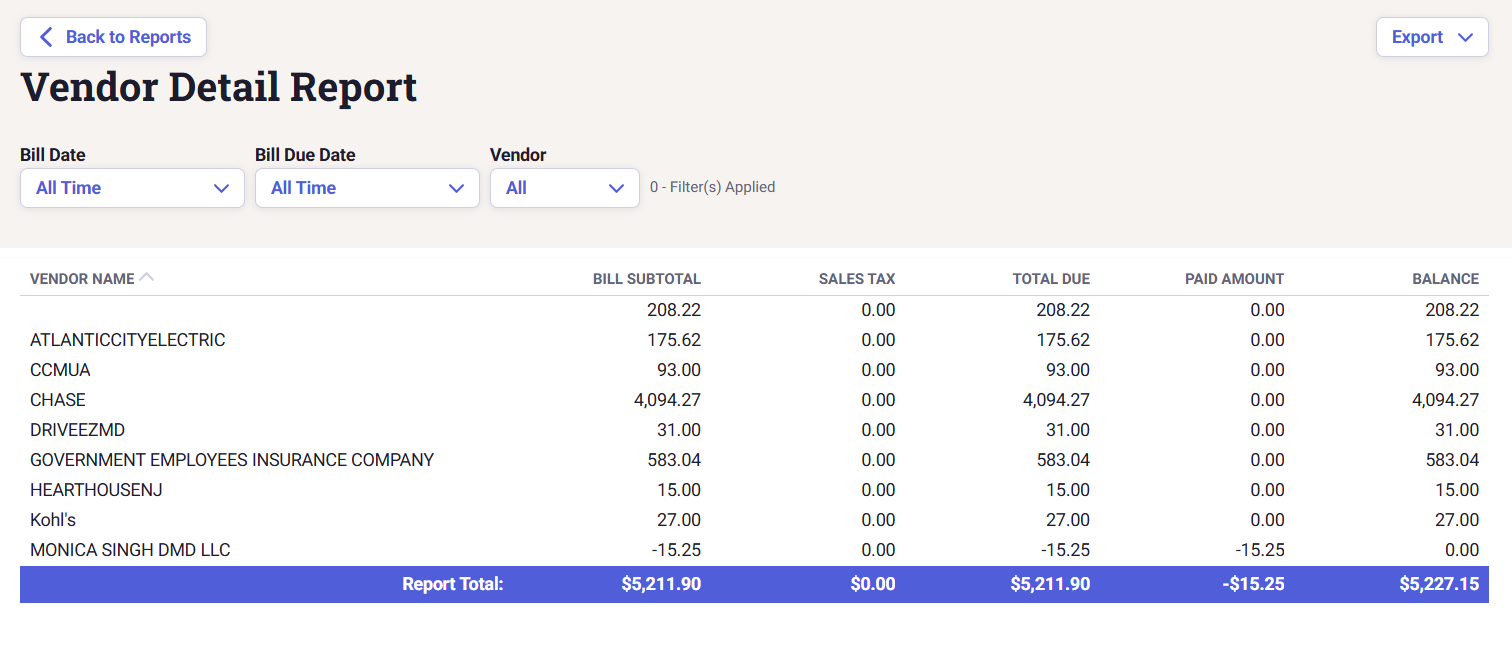
- Use the filters to narrow down your results. The following filters are available:
- Bill Date
- Bill Due Date
- Vendor
- You can click Export to save the report as a PDF or CSV. You can also email a copy of the report.
Please Note: At this time, you cannot save a vendor detail report in Neat. This is a feature enhancement that is coming soon. In the meantime, you can save a copy of the report in Neat by emailing a copy of your report to your Neat Cloud email-in address.
How do I create a bill detail report?
- First, click Reports at the top right-hand corner of Neat.
- The Bill Detail Report will show all bills, both paid and unpaid, for all time and all vendors in Neat.
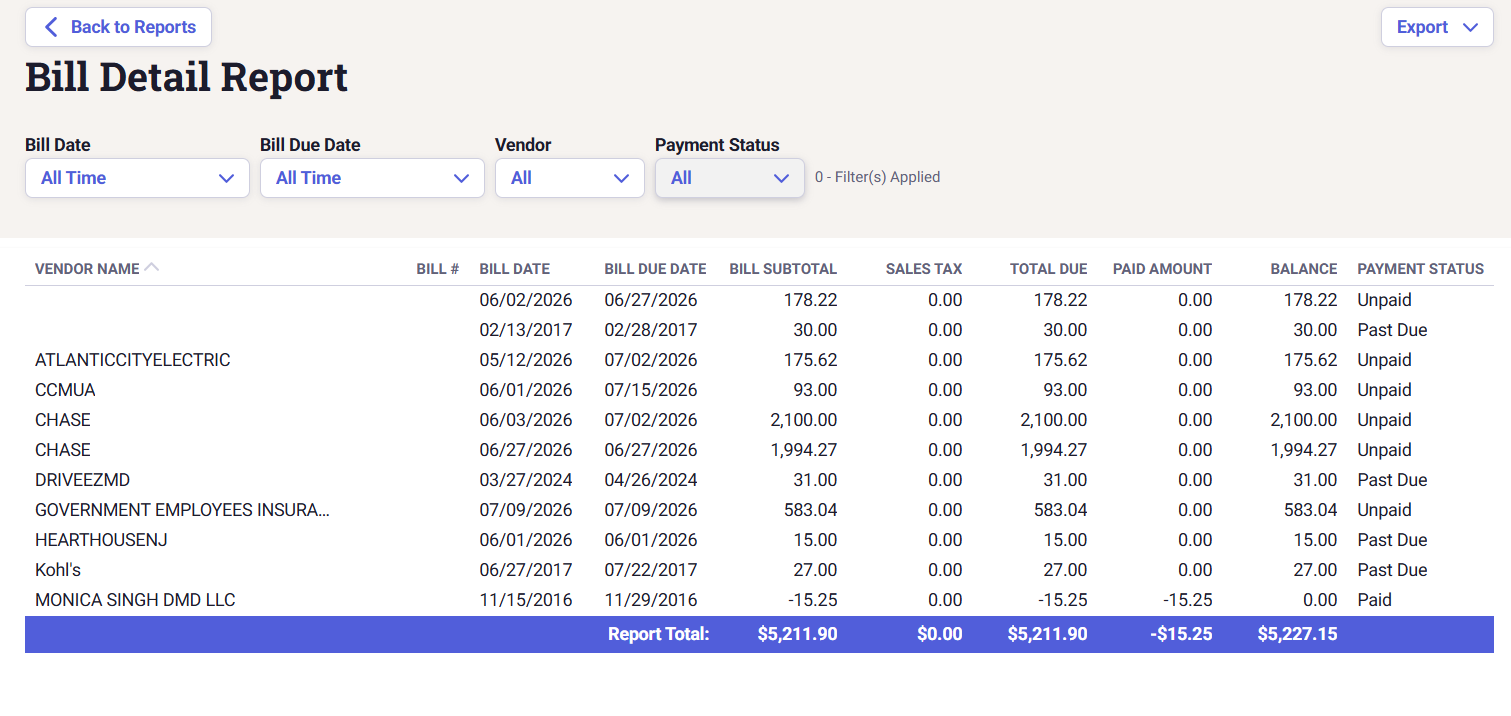
- Use the filters to narrow down your results. The following filters are available:
- Bill Date
- Bill Due Date
- Vendor
- Payment Status
- You can click Export to save the report as a PDF or CSV. You can also email a copy of the report.
Please Note: At this time, you cannot save a bill detail report in Neat. This is a feature enhancement that is coming soon. In the meantime, you can save a copy of the report in Neat by emailing a copy of your report to your Neat Cloud email-in address.
