ScanSnap S1100
The ScanSnap S1100 is NOT a twain compliant scanner. The scanner will NOT show up in the Neat Desktop App as a connected scanner. To scan with this scanner, you must use the ScanSnap Manager.
Please Note: This scanner is supported in both Windows and Mac environments.
Setting up the ScanSnap S1100 to Scan to Neat
- Close the Neat Desktop App and disconnect your ScanSnap S1100 if it is connected.
- If you haven't done so already, you will need to install the ScanSnap S1100 driver and software.
- Once the driver is installed, launch the Neat Desktop App and ScanSnap Home.
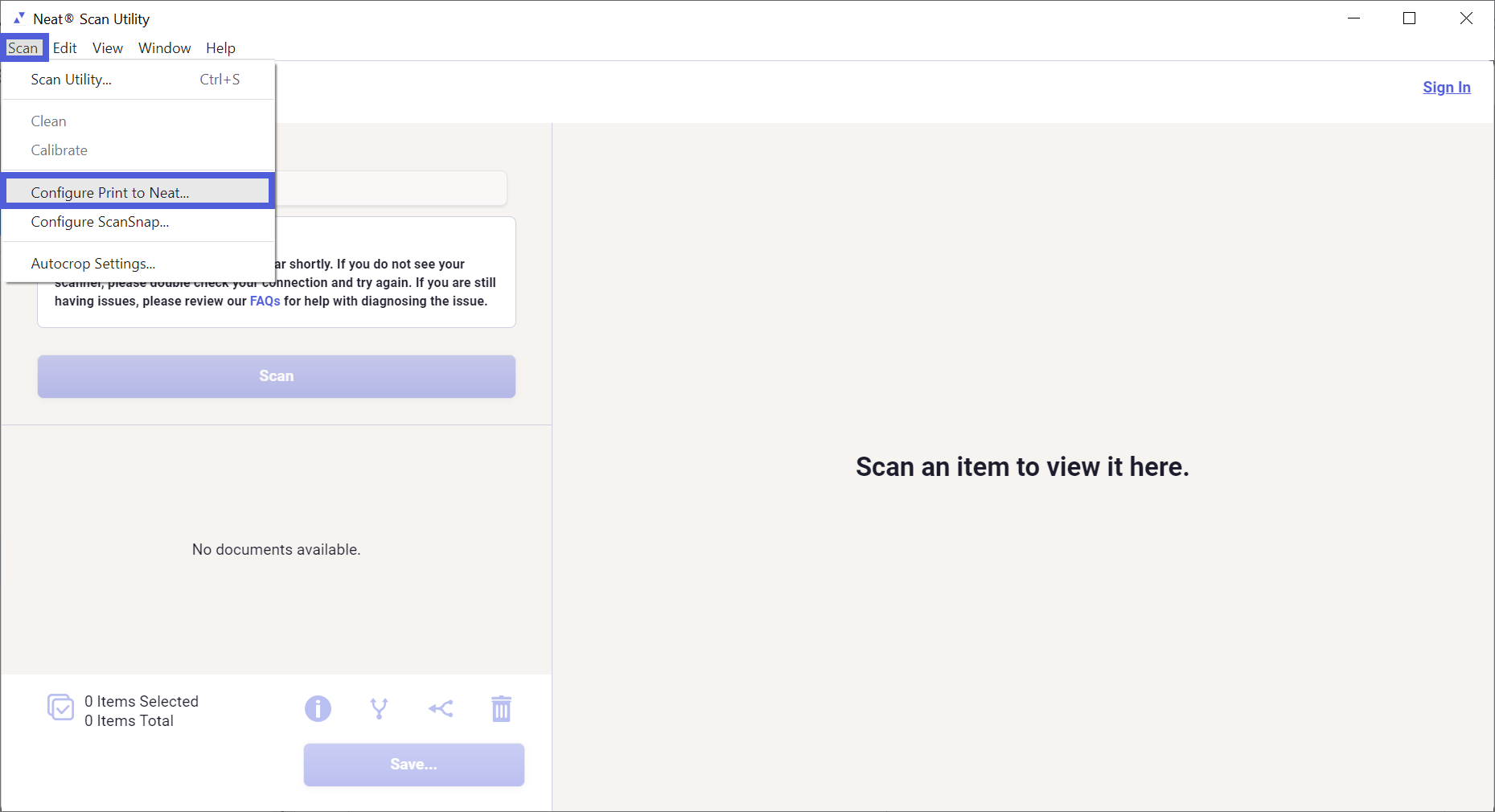
- In the Neat Desktop App, click Scan and then select Configure ScanSnap...
- In the popup window, click CONFIGURE SCANSNAP to create a scan option in ScanSnap Home for Neat.
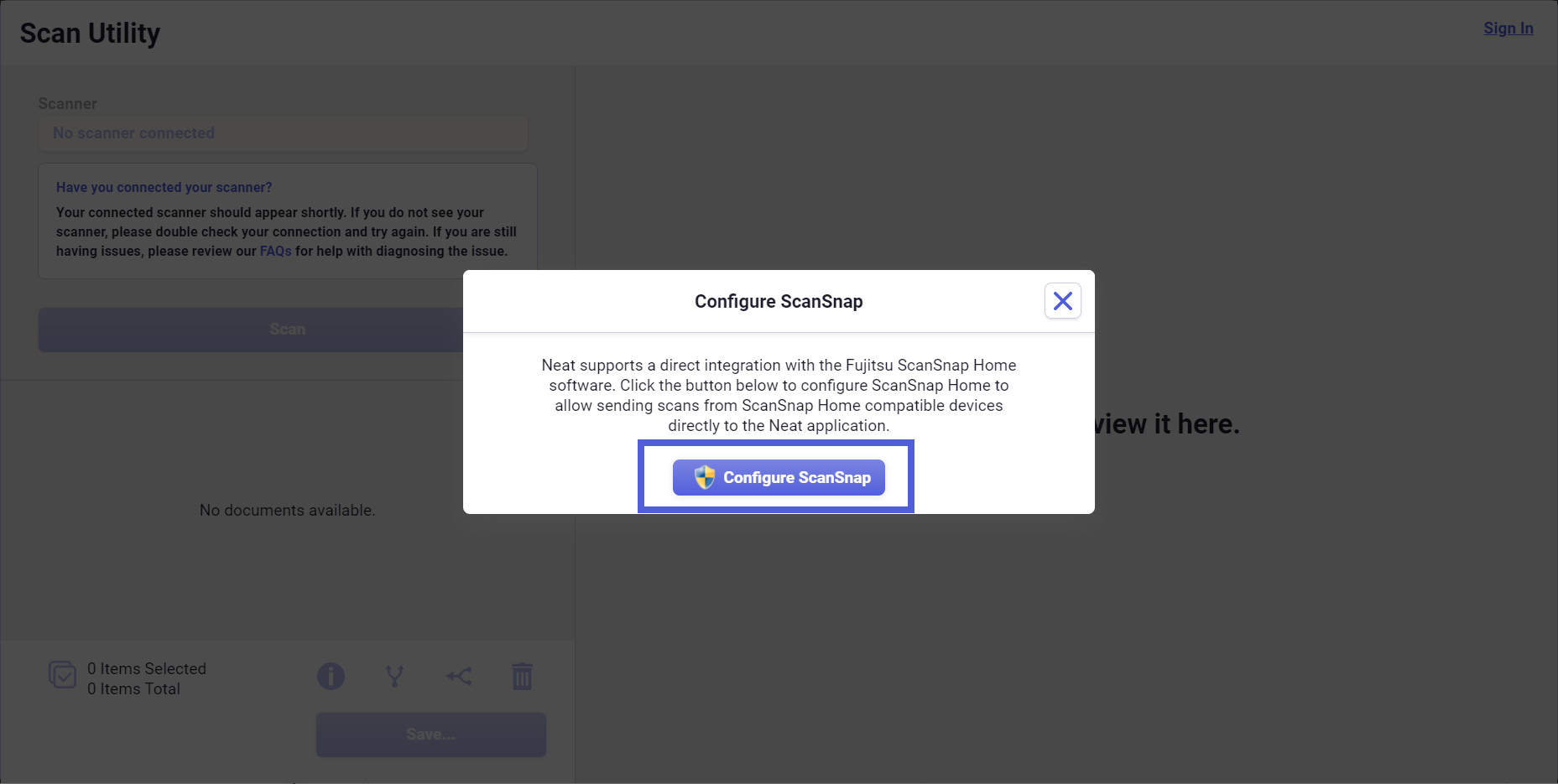
- Click Yes to continue. You will get the following confirmation that the profile was set up.

Scanning with the ScanSnap S1100
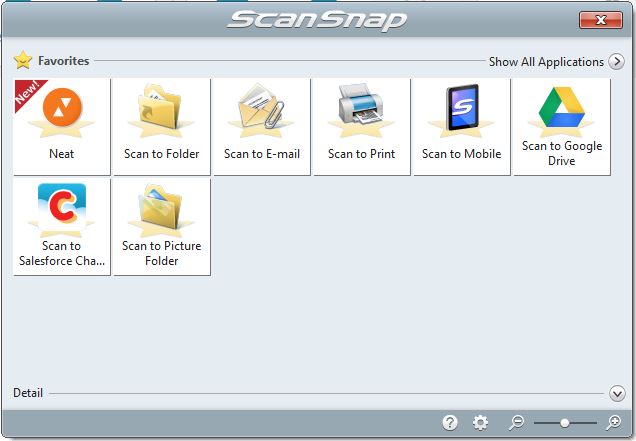
- Open your ScanSnap Manager. Neat should appear as one of the applications the ScanSnap manager is integrated with. Make sure Neat is selected as the application you would like to use.
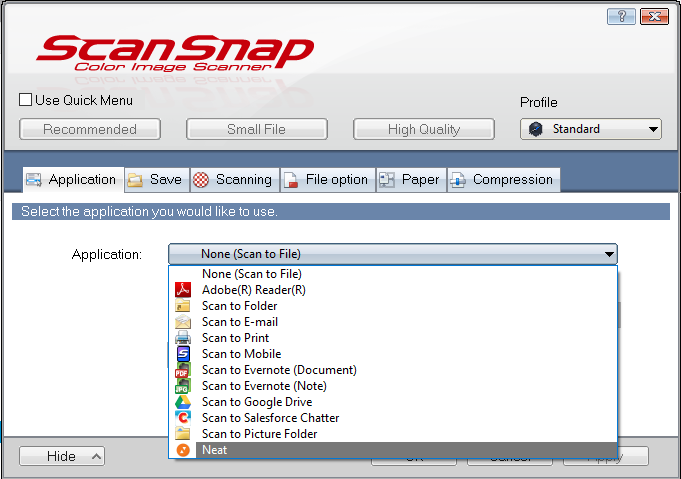
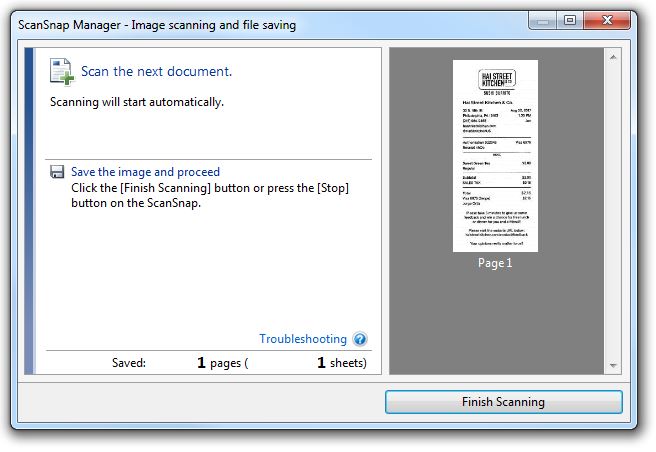
- Load an item into your scanner, and click scan. If you have the preview scans feature on, then you will see a preview of your scanned item. Click Finish Scanning.
- The item will then be sent to your Neat Desktop App as an import.
