ScanSnap iX2500
Please Note:
- With this integration, your ScanSnap scanner will not show up in the list of available scanners to choose from in the Neat Desktop Application scanner dropdown box. Instead, you must use both the ScanSnap Home software and the Neat Desktop Application to scan and save files to Neat.
- With the iX2500, you also have the option to scan to email, which enables you to send items directly to your Neat account when you send it to your @neatcloud.com email. See this article for more details.
Setting up the ScanSnap iX2500 to Scan to Neat
- Close Neat and disconnect your ScanSnap iX2500 if it is connected.
- If you haven't done so already, you will need to install the ScanSnap iX2500 driver.
- Also download and install the ScanSnap Home software if not already done.
- Once the driver and ScanSnap Home are installed, restart your computer.
- Then launch the both the Neat Desktop App and ScanSnap Home.
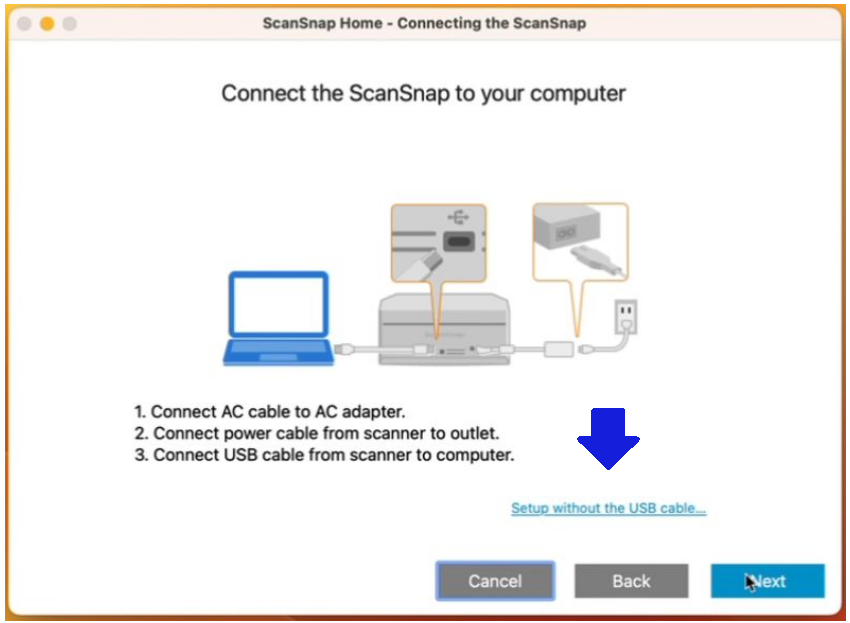
- In ScanSnap Home, when you set up the iX2500 as your scanner, you can follow the steps shown in ScanSnap Home to connect it as a USB scanner, but you also have the option to connect it wirelessly by clicking the blue Setup without the USB cable… link.
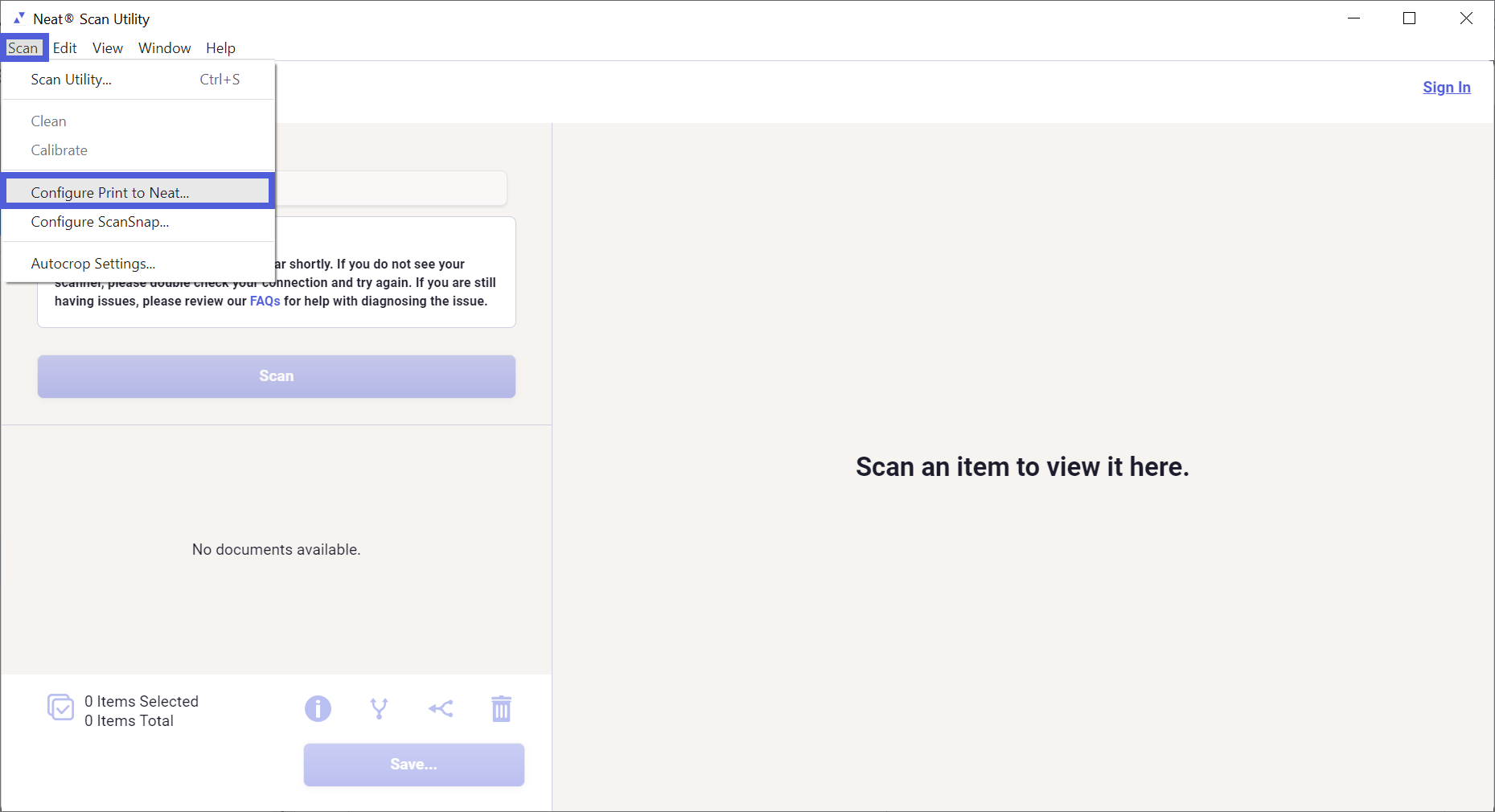
- In the Neat Desktop App, click Scan and then select Configure ScanSnap...
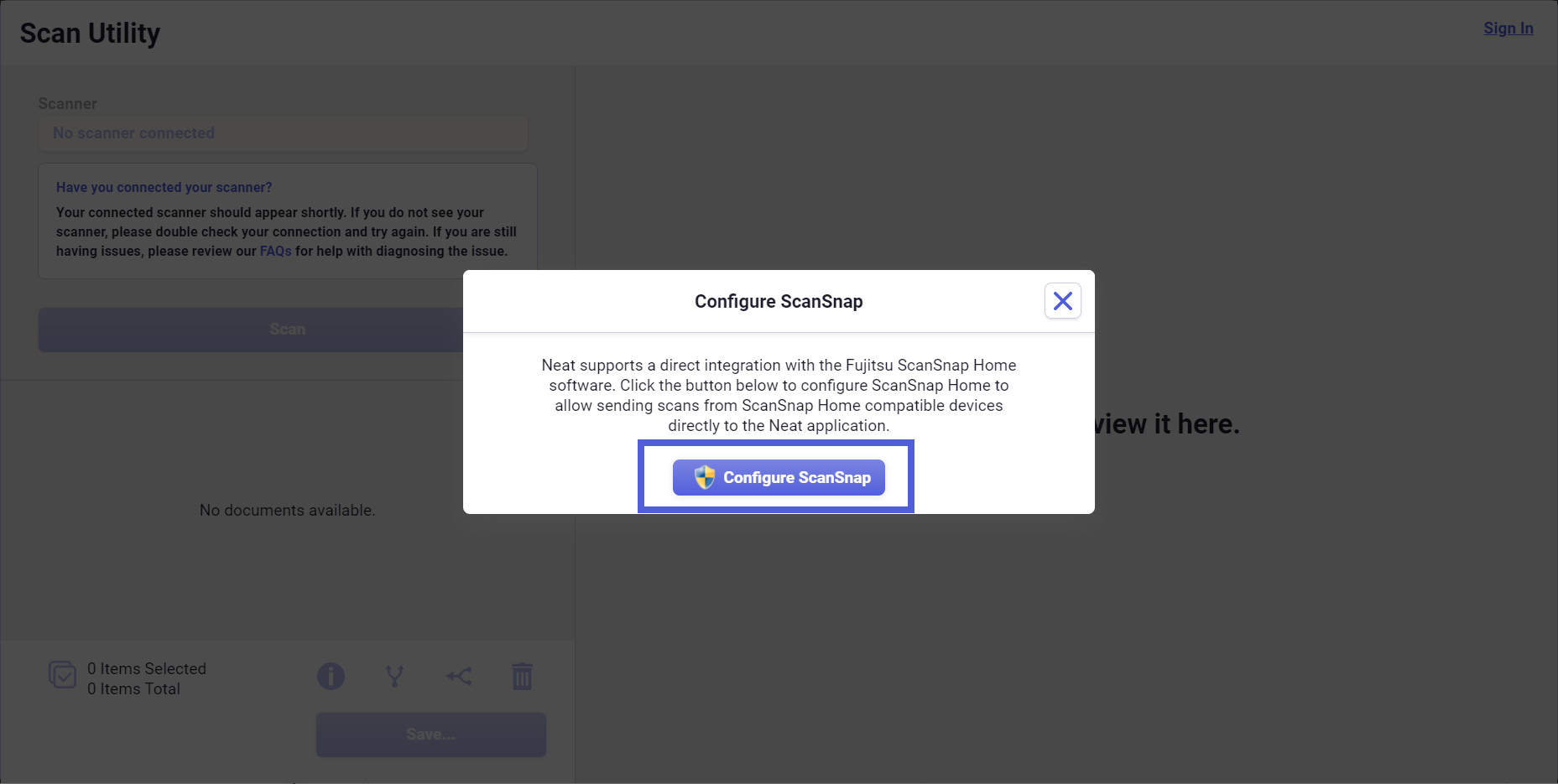
- In the popup window, click CONFIGURE SCANSNAP to create a scan option in ScanSnap Home for Neat.
- Click Yes to continue. You will get the following confirmation that the profile was set up.

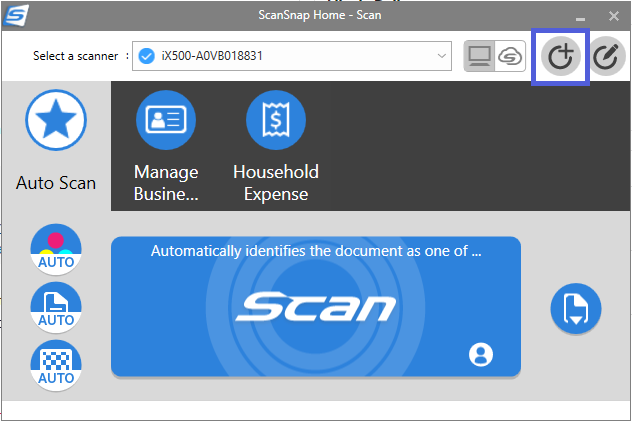
- Go to ScanSnap Home, and click the Add Profiles button in the upper right to complete setting up the Neat profile.
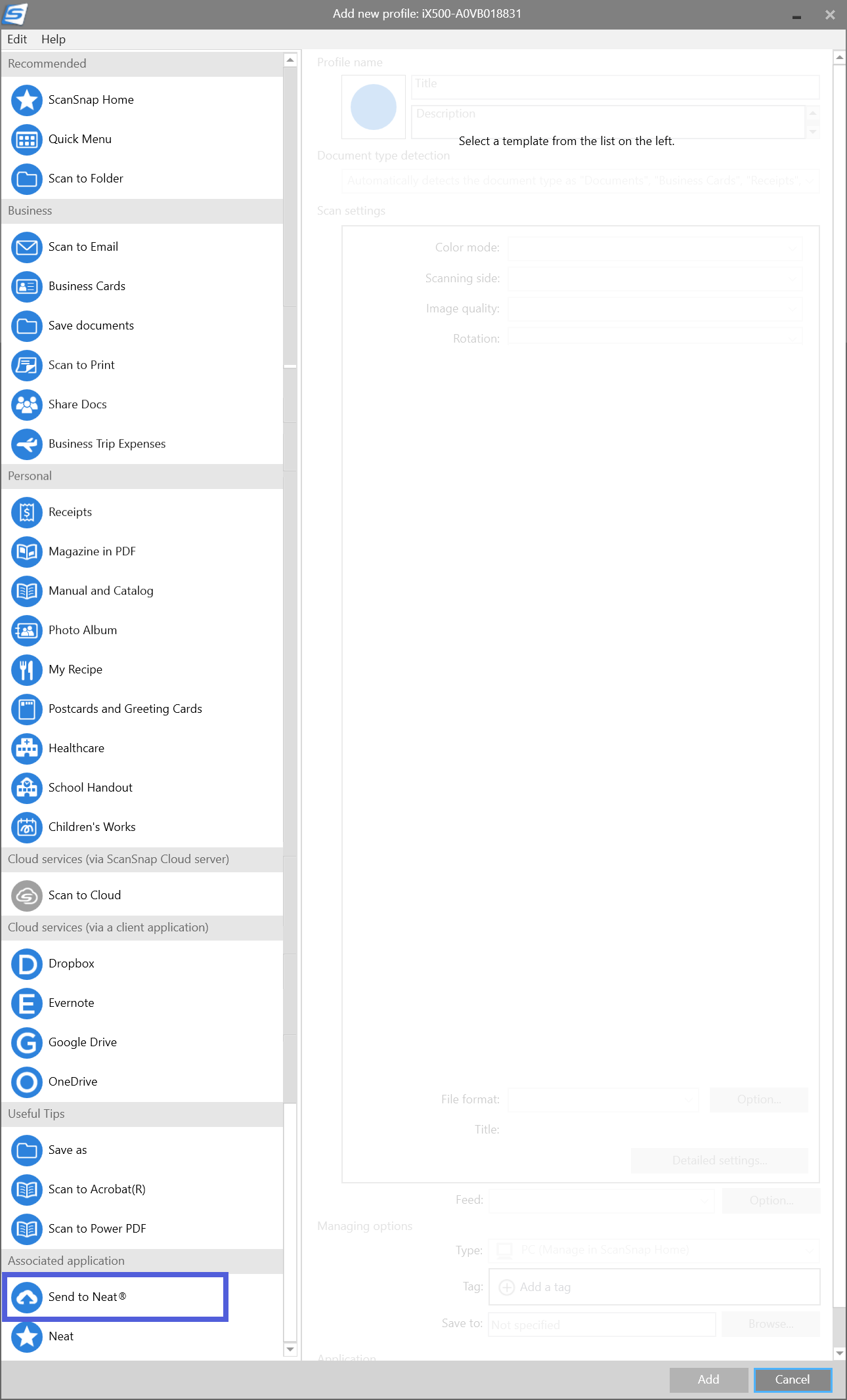
- Scroll to the bottom of the list to select Send to Neat and then click Add to finish setting up the Neat scan profile.
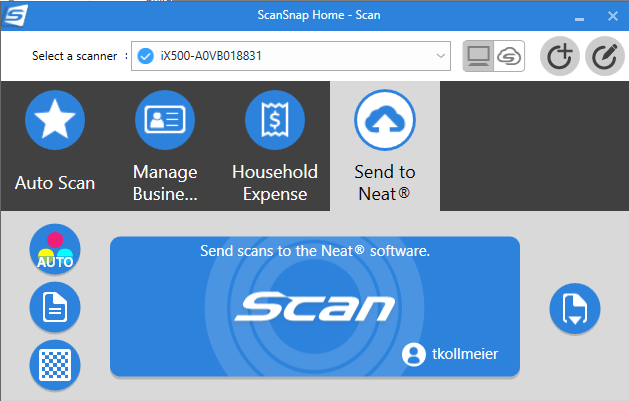
- Now you're ready to scan. Be sure to select the Send to Neat profile. Load your documents in the scanner and click Scan in ScanSnap Home.
- Once scanned, your items will appear in the Neat Desktop App and you will have the option to edit (rotate, crop, delete) your item and send it to Neat or save it on your computer.
