Neat gives you one secure, organized place to store, search, and manage your receipts and expenses. Making it faster to find what you need and keeping your documents safe and accessible on the go, so you can stay organized wherever you are.
This article walks you through five essential key concepts and tools for doing your taxes in Neat. From understanding item types in Neat, to getting files into your account, to setting up a folder structure that works for your workflow.
Item types help Neat understand what kind of file you’re saving (like a receipt, document, or contact) so you get the right fields and actions for each one. Choosing the right item type makes it easier to organize your files, filter your cabinet, and ensure your financial data is tracked accurately. There are nine item types available in Neat:
Receipts: Receipts represent proof of a purchase or payment, typically money that has already been spent. Receipts are commonly used for everyday purchases, point-of-sale transactions, and expense documentation. Receipts are one of the primary item types that flow into Neat reports and can be sent to integrated applications such as QuickBooks.
Use a Receipt when you want to track money out that is not tied to a bill you are managing separately.
Bills: A Bill is something a third party sends to you requesting payment (for example, a utility bill, vendor bill, or credit card statement balance due). Bills are used to track amounts you owe, regardless of whether they have been paid yet. Neat allows you to mark your bills as paid. As Neat continues to evolve, bills will be more directly tied to payment tracking, allowing you to associate payment records and supporting documents (such as receipts or checks) with them.
Use a Bill when you want to track an obligation to pay, not just the proof that payment occurred.
Invoices: An Invoice is something you send to a third party requesting that they pay you. Invoices are used to track money you expect to receive, whether or not payment has been collected yet. Neat allows you to mark your invoices as paid. As Neat expands its invoice and income tracking capabilities, invoices will be directly associated with payments received.
Use an Invoice to track revenue you are billing for.
Documents: Documents are any files that are not financial records or contacts. Documents do not flow through to reports or integrations and are intended strictly for organization and reference.
This item type is ideal for storing and organizing important non-financial files such as contracts, agreements, warranties, reports, policies, and terms & conditions.
Contacts: Contacts allow you to digitize all those business cards you get. Contacts can be sent over to integrated applications in Neat, such as Campaign Monitor, Constant Contact, MailChimp, and Outlook. Contacts do not flow through to your reports.
Statements: Statements are used to track account activity and balances over a specific period of time, such as bank statements or credit card statements. Statements are helpful for tax preparation, audits, and financial reference. The IRS recommends keeping account statements for at least three years. Statements do not flow through to reports or integrations.
Checks: Checks are typically used to store images or records of checks written or received. We recommend saving checks related to taxes, business expenses, home improvements, or mortgage payments. Checks do not flow through to reports or integrations but serve as important documentation and proof of payment.
Mileage: The Mileage item type allows you to track trips and driving-related expenses, including start and end odometer readings. Mileage items flow into Neat’s Expense Report but do not flow into other report types or integrations.
Use Mileage when you need to track or reimburse vehicle-related travel.
Recipes: You can store recipes in Neat and track things such as cooking time, yields, and your ingredient lists. Don’t worry about spilling liquids all over your recipes. Store all your favorite recipes in Neat to keep them safe, for quick access, and to quickly share them with others! Recipes are for personal organization only and do not flow through to reports or integrations.
How to Get Your Files Into Neat
Neat brings all your files together in a single, secure place designed for easy storage, search, and management. Every document you add to Neat is processed with OCR (Optical Character Recognition), transforming your files into keyword-searchable items, so you can quickly find what you need. In Neat, your documents are protected and accessible wherever you are, helping you stay organized and in control. Newly added files appear in your Needs Review filter, making them easy to locate regardless of the folder you save them in. With five different ways to upload files into Neat, you can easily capture and add everything you need. Make the most out of Neat and save even more time by utilizing all available file upload methods. Click on an upload method below to learn more about it:
Neat Pro Tip:
Spending just 10 minutes each week uploading, categorizing, and organizing your receipts and expenses in Neat is all you need to stay in control and up to date on your finances year-round! This simple weekly habit keeps your finances tidy, reduces last-minute scrambling, and saves you hours down the road.
Neat Mobile App Capture
Our mobile app transforms your smartphone or tablet into a scanning powerhouse. Snap crystal-clear pictures of receipts and invoices instantly within the mobile app, turning your device into a financial documentation tool with just one click. Beyond camera capture, you can also seamlessly import documents directly from your device's photo gallery. All Neat Cloud subscriptions include access to the Neat Mobile App.
To get started with the Neat Mobile App, you'll need to install the Neat Mobile App from your mobile device's app store. Text "Get Neat" to 267-367-NEAT (6328) to receive our mobile download link or click one of the links below:
Email-Forwarding
With every Neat Cloud subscription, you get your own personalized Neat Cloud Email-In address (@neatcloud.com). Using your Neat Cloud Email-In address, you can forward your e-receipts and other digital documents straight to Neat, and they’ll automatically appear in your account. The email content shows up as an item, and any supported attachments (PDF, HTML, JPG/JPEG, BMP, PNG, and TIF/TIFF attachments) get added as separate items. It’s an easy way to keep everything organized and at your fingertips.
To get started with email forwarding, you'll need to find your unique @neatcloud.com email address by logging into app.neat.com. There, you can also choose a default item type for anything you email into Neat. Choose a specific type if you know you will only be sending one type of item in Neat, or choose the Auto-Classify option, and Neat will detect the item type for you. When you send items to your @neatcloud.com address, they’ll appear in the Needs Review filter, as well as under the Unfiled filter. These locations contain all email-in items that are waiting to be reviewed and organized.
For more information about email-forwarding and for a list of How-Tos, check out our Help Center Article: Email-In Feature in Neat
Importing
You can import all your digital files into Neat to make it easy to keep all your important documents organized and accessible in one place. Neat supports a variety of file types for importing, including PDF, JPG, TIF, PNG, and BMP. By bringing your files into Neat, you can quickly organize, search, and manage them without worrying about losing track of important information, making your workflow simpler and more efficient.
For more information about importing and for a list of How-Tos, check out our Help Center Article: Import Items to Neat
Scanning
To scan files into Neat, you need the Neat Desktop App. The Desktop App is compatible with both Mac and Windows and is free to use with or without a Neat Cloud subscription. The Desktop App transforms your physical documents into digital items you can store, organize, and search for in your Neat Cloud account. The Desktop App is compatible with the 1000 series model Neat scanners (NM-1000, ND-1000, & NC-1000) and most 3rd party TWAIN-compliant scanners.
Print-to-Neat
Print-to-Neat is a virtual printer and scanner you can use to send items to your Neat Desktop Application. Print-to-Neat lets you send documents, receipts, or other files directly to your Neat account as if you were printing them, except instead of going to a physical printer, they go straight into Neat digitally. You can use it from any program that can print, like a web browser, Word, or Adobe Acrobat. When you choose the Neat Virtual printer, your document is automatically captured, stored, and ready to organize in Neat, just like a scanned item. Print-to-Neat is a great tool for sending order confirmation pages to Neat after making a purchase, without printing or saving the order confirmation page. Print-to-Neat is currently only available on Windows devices.
For more information about Print-to-Neat and for a list of How-Tos, check out our Help Center Article: Print-to-Neat in Windows
How to Setup a Folder Structure That Works
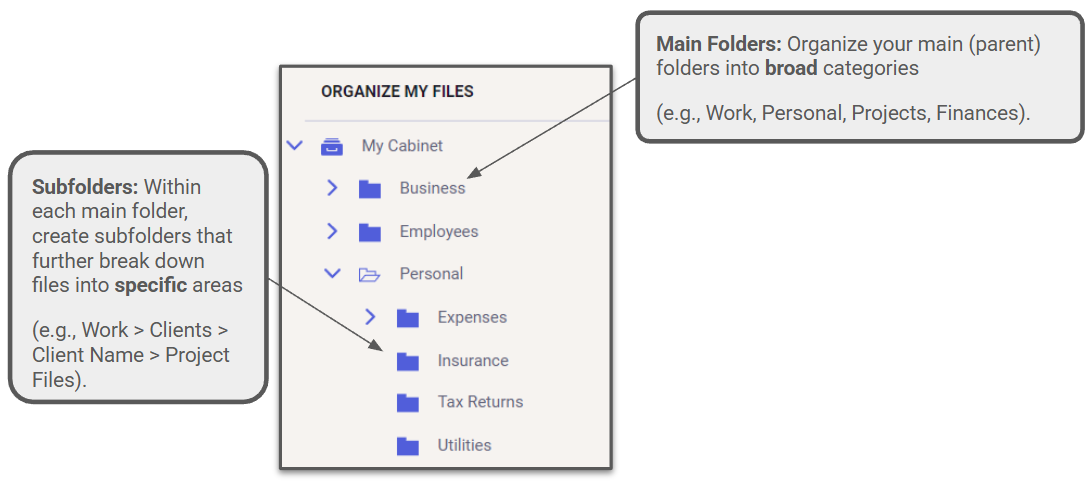
A well-organized folder structure in Neat helps you store, find, and manage your documents efficiently. Neat’s File Cabinet lets you create folders and sub-folders tailored to your specific needs. Folders are ordered alphabetically and numerically. Here are our recommended best practices for setting up a folder structure that works and is scalable:
1. Start With Broad, Logical Parent Categories
Your top-level folders should represent the major buckets of your life or business. Examples: Work, Personal, Family, Projects. Create subfolders inside each main folder to organize files into more specific categories.
2. Use a Year-Based Folder Structure for Anything Time Driven
For documents you revisit quarterly or annually, such as taxes, receipts, and financial records, the cleanest structure is to organize your folders into years. Storing them in year-specific folders means everything you need for a specific year is already grouped together and easy to export or share without digging through mixed folders. Year-based folders are future-proof. Whether you have 50 files or 5,000, the structure scales neatly without needing to be reorganized over the years.
3. Use Consistent Naming Conventions
Consistent file and folder naming is one of the most important practices in any digital organization system. Naming conventions dramatically affect your ability to find and identify files easily, especially as your database grows. Be descriptive with your folder names, but not too long. Avoid vague names for your folders such as 'Misc' or 'Old Files'.
Neat Pro Tip: Use Neat's folder duplication feature to create a consistent folder structure from year to year.
4. Fewer Folders = Better
Fewer folders in your folder structure is actually better for staying organized. You should avoid deep nesting and limit the number of subfolder levels in your folder structure. A healthy folder structure sticks to 2-3 subfolder levels.
5. Mirror the Way You Naturally Search for Documents
Think about how you mentally look for files. If you search by client, build a client-based structure. If you search by year, organize by year. If you search by project, group documents by project lifecycle. When your folder structure mirrors the way you search in real life, you find files faster, make fewer mistakes, and spend less time cleaning up or reorganizing.
6. Keep Business and Personal Files Separate
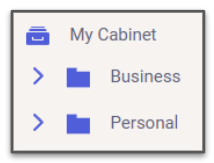
Keeping your work files and personal files in distinct, clearly separated folder structures is one of the simplest ways to reduce clutter and avoid major organizational headaches. Separating these two worlds helps maintain clarity, compliance, and long-term order. In Neat, you can accomplish this simply by creating a parent/top-level folder for each 'Business' and 'Personal', then nest your subfolders in each.
7. Create a Centralized 'Tax Documents' Folder
Create a centralized ‘Tax Documents’ folder to store all your tax documents for the year in one place. This simplifies organization by reducing the risk of lost documents, saves time by eliminating the need to search through multiple folders, and reduces errors by ensuring no forms are overlooked. Having everything consolidated also makes it easier to provide records to your accountant, the IRS, or a financial advisor when needed.
8. Organize Folders Alphabetically and Numerically
Professional organizers recommend organizing your folder structure alphabetically or numerically to make it easier to navigate. By default, Neat orders your folders both alphabetically and numerically, so you don't need to do any extra work to accomplish this.
Neat Pro Tips: Even though Neat automatically orders your folders alphabetically and numerically, you may want to order your folder structure in a specific way. Check out these tips to learn how to take full control of your Neat folder structure order:
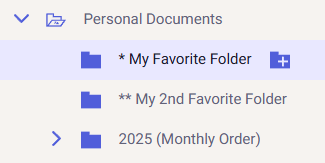
Use special characters in your folder names to tag your favorite folders and bring them to the top of your folder structure for easy access.
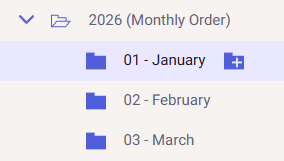
Number your folders to put your folders into a specific order.
9. Plan for Growth
While building your folder structure, ask yourself:
“Will this still make sense in 2 years?”
“Could I scale this to hundreds of files?”
“Would a new employee understand it instantly?”
If the answer is yes, you’re on the right track!
What the IRS Requires for Digital Receipt Storage
The IRS allows taxpayers to store receipts and other tax records electronically, as long as the digital copies are accurate, readable, and retrievable. Scanned or photographed receipts are acceptable substitutes for paper originals when they meet these standards. Digital storage can be more secure and reliable than paper when files are backed up, protected, and searchable. Unlike paper receipts that can fade, tear, or be lost, properly stored digital receipts remain accessible and audit-ready for years.
How long does the IRS recommend keeping receipts?
The IRS recommends keeping receipts and supporting documents for different lengths of time depending on the situation:
The general rule for most tax records is to keep them for at least 3 years after filing a tax return
6 years if you underreported income by more than 25%
7 years for records related to bad debts or worthless securities
When in doubt, keeping records for longer is the safest option!
What Information the IRS Requires
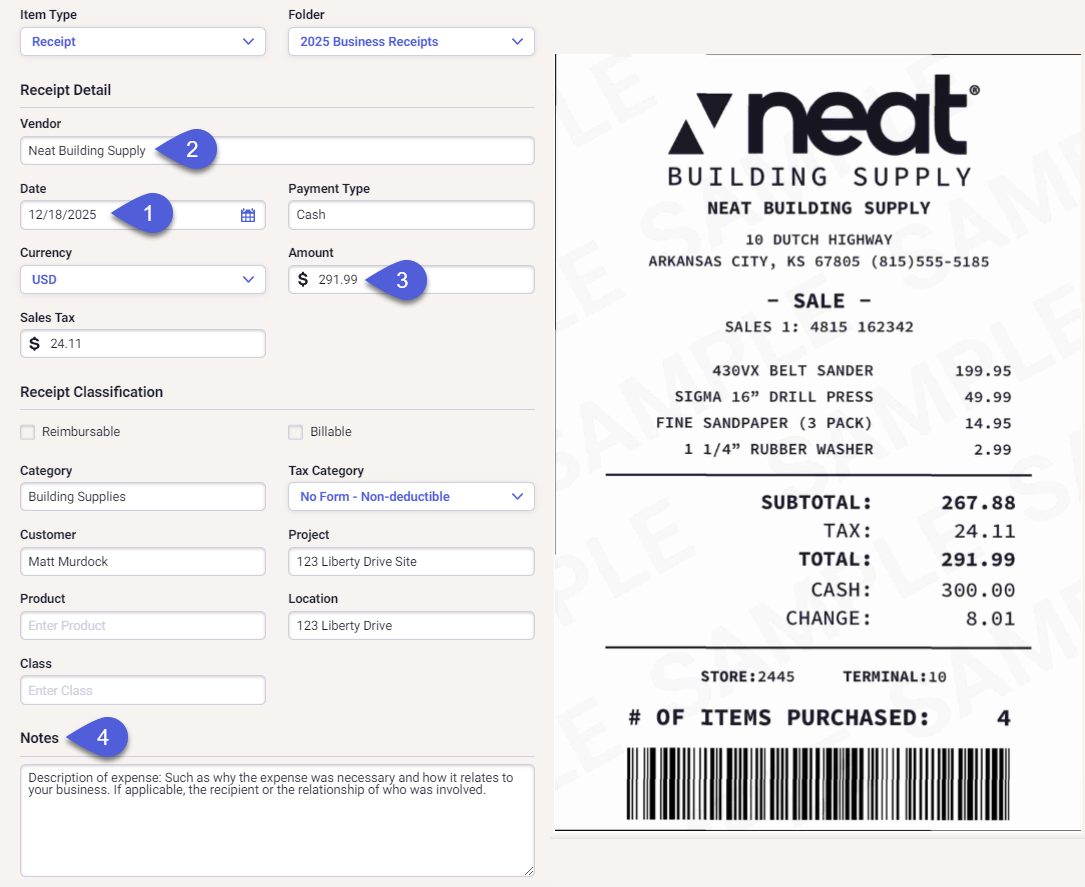
For a digital receipt to be valid for tax purposes, it should clearly include:
Date of purchase
Vendor or merchant name
Amount paid
Description of expense: Such as why the expense was necessary and how it relates to your business. If applicable, the recipient or the relationship of who was involved.
Neat automatically helps you capture key IRS required details about your receipts, such as date, vendor, and amounts, through OCR processing.
Neat Pro Tip: Keeping itemized receipts whenever possible makes it easier to support deductions and avoid issues during an IRS review. For most tax deductions, the IRS expects itemized receipts that show what was purchased, not just the total amount, because they help prove an expense was necessary and business-related. Itemization is especially important for meals, travel, and mixed-use purchases, where deductible and non-deductible items may be combined. Use Neat's receipt splitting feature to split your receipts between different expense categories and itemize your receipts.
Using Neat for Tax Prep
Keeping your tax documents organized can feel overwhelming, but Neat makes it simple.
IRS-Compliant Digital Receipts
The IRS accepts properly maintained digital records, and Neat securely stores your receipts, invoices, and bills in compliance with regulatory standards. This means you can confidently maintain proof of deductions without worrying about lost, faded, or misplaced paper receipts. Having a reliable, IRS-compliant digital record is especially important for businesses, freelancers, or anyone subject to audits. See what data the IRS requires for digital receipt storage.
Organize All Your Tax Documents
Upload, categorize, and store all your receipts, invoices, bills, and other financial documents in one secure place. Studies show that individuals who maintain organized records throughout the year spend up to 40% less time on tax preparation. With Neat, everything is searchable and easy to access, so finding what you need for filing or for your accountant is fast and stress-free.
Neat Pro Tip:
Create a centralized ‘Tax Documents’ folder to store all your tax documents for the year in one place. This simplifies organization by reducing the risk of lost documents, saves time by eliminating the need to search through multiple folders, and reduces errors by ensuring no forms are overlooked. Having everything consolidated also makes it easier to provide records to your accountant, the IRS, or a financial advisor when needed.
Track Deductible Expenses Easily
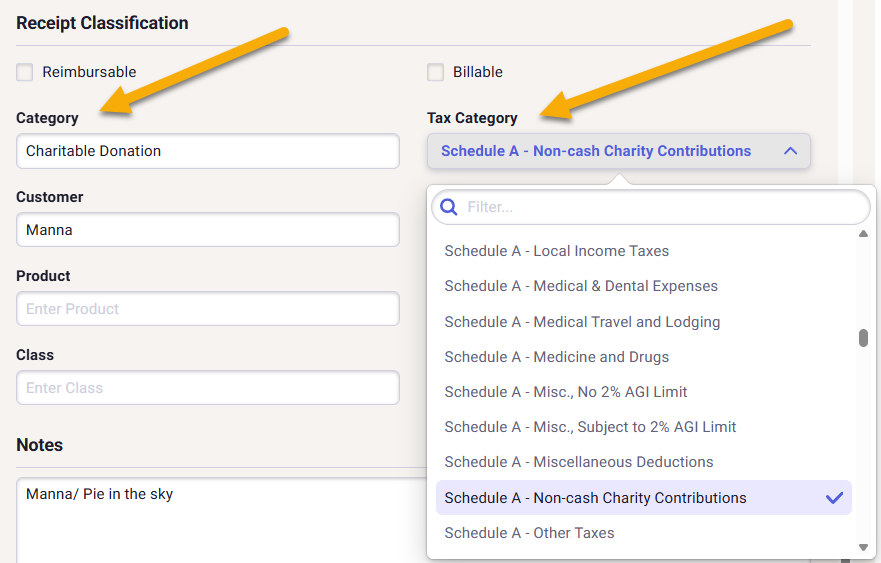
Neat helps you track expenses that may be tax-deductible. By categorizing your spending consistently, you reduce the risk of missing deductions. Small businesses and freelancers often overlook potential savings due to scattered or misplaced receipts. Keeping everything in Neat can help capture these opportunities, potentially saving hundreds or even thousands of dollars each year.
Neat Pro Tip: Keeping itemized receipts whenever possible makes it easier to support deductions and avoid issues during an IRS review. For most tax deductions, the IRS expects itemized receipts that show what was purchased, not just the total amount, because they help prove an expense was necessary and business-related. Itemization is especially important for meals, travel, and mixed-use purchases, where deductible and non-deductible items may be combined. Use Neat's receipt splitting feature to split your receipts between different expense categories and itemize your receipts.
Generate Reports for Your Accountant or Tax Software
Neat allows you to generate detailed reports of your income and expenses, which can be exported in formats compatible with most accounting and tax software. This eliminates tedious manual entry, minimizes errors, and streamlines collaboration with accountants. Digital organization of tax documents can reduce preparation errors by up to 25%, ensuring accurate and efficient filings.
Neat Pro Tip: Neat recommends the Expense Report to prepare your tax return and maximize your tax deductions. The Expense Report summarizes receipts, mileage, and other expenses. This report provides a convenient cover sheet, a line-by-line breakdown of all expenses in the report, and the option to include source images. This report helps you organize expenses, request reimbursements, and maintain accurate tax and accounting records.
For more accurate expense reporting, files and transactions must now be categorized under the top-level categories Cost of Goods Sold or Expenses to be included in the report. Also, transactions should be from Cash, Bank, or Credit Card account types.
Add Your CPA or Accountant to Your Neat Account
Every Neat Cloud subscription lets you invite up to four additional users, making it easy to add your CPA or accountant to Neat. You can give them full access or limit access to specific folders, so they see only what they need. By sharing access, you reduce back-and-forth requests, minimize errors, and help your tax professional stay organized and prepared, saving you time, lowering stress, and keeping you ahead of tax deadlines.
Stay Ahead of Tax Season
Consistently uploading and categorizing receipts throughout the year reduces the stress of tax season. A proactive approach saves time, improves accuracy, and gives you a clear view of your finances. By maintaining up-to-date records in Neat, you can file confidently and make informed decisions about your spending and taxes.
Neat Pro Tip:
Staying organized doesn’t require hours of effort. Just 10 minutes a week uploading, categorizing, and organizing receipts and expenses keeps your finances in order and makes tax preparation faster, easier, and stress-free year after year. A small, consistent weekly habit delivers big results.
Access additional receipt and expense management tools with the Automated Insights Add-On. Automated Insights unlocks the Transactions section of Neat under 'Do My Books'. With Automated Insights, you can securely connect your bank, credit card, and loan accounts to Neat. This allows all incoming and outgoing transactions to automatically stream into one central place, reducing the risk of missing activity. Having both your documents and your financial activity in Neat gives you clearer insight into where your money is coming from, where it’s going, and how everything connects.
File Cabinet (Organize My Files):
The File Cabinet is where you store and organize your documents, source receipts, and proof of purchase. These files support and validate your financial records.
Transactions (Do My Books):
Transactions contain the raw financial activity from your connected accounts, including every incoming and outgoing transaction. This data provides the foundation for understanding your cash flow and overall financial picture.
Neat Pro Tip: One of the most powerful Automated Insights features is transaction matching. This allows you to match receipts and documents stored in your Neat File Cabinet to the corresponding transactions from your financial institutions. By linking proof of purchase to raw transaction data, you can more easily reconcile accounts, stay organized, and prepare for bookkeeping or tax time with confidence.